Tuesday, September 23, 2008

Computer Account Requests - New Processes as of Sept 2, 2008

In the past, we have had different account processes and services for many different types of employees and volunteers. We now have streamlined the account process down to two divisions. We will follow one process if the employee is paid by Penn State, and follow a second process if the person is not paid by Penn State.

One of the most significant changes in the process is that the College of Ag IT Unit will no longer play a role in applying for or receiving a Penn State Access Account. Computer security policies no longer allow us to receive an employee’s confidential account information. New employees will file the access account application form directly with the Accounts office at University Park, and will need to visit any campus of the university to receive their password. We used to provide an intermediary service for these account procedures, it is now against policy to do so.

If the person is paid by Penn State, he/she will need to apply for a Penn State Access Account. This username and password combination will grant the employee access to manage their Penn State benefits online, to access Penn State Library information, to connect to authorized Penn State wireless services, to use Penn State campus training computer labs, and to login to CASPAR. Additionally, the employee will need to apply for a College of Ag domain account to gain access to other needed services – to use Enterprise computers, to send and receive e-mail using the College’s Outlook/Exchange system, and to connect to SharePoint services.

Account request process for Penn State paid employees can be found at - http://it.cas.psu.edu/1207.htm

Everyone else NOT paid by Penn State - county paid staff, student interns, and dedicated volunteers who need access to college computers (office computers or SharePoint Sites) to perform their duties - do not receive a Penn State Access Account. They must apply for a “Friends of Penn State” account and the College of Ag Domain Account. Depending on the services requested when the account is created, the domain account will enable this person to use Enterprise computers, send and receive e-mail through the College’s Outlook/Exchange mail system and connect to SharePoint services.

Account request process for County paid employees can be found at - http://it.cas.psu.edu/386.htm

Thank you for your cooperation and patience as we help to make these new processes more routine.

Wednesday, September 10, 2008

QuickTime 7.5.5 Update Released

On Sept 9, 2008, an updated version of QuickTime was released (7.5.5). This update fixes an issue where a maliciously crafted movie file may lead to arbitrary code execution on your computer. In simple terms, malware could be installed on your computer. See more details here (Scroll down to the Security Updates section and click the link for QuickTime 7.5.5).

QuickTime is installed on all Enterprise computers. Apple's QuickTime software allows your Enterprise computer to view graphics, videos, on-line video streams (ex: Candidate Interviews in the College), and more.

Action Required: Please see our How To Install QuickTime for Windows using the Standalone Installer for steps on updating QuickTime to the latest version.

Tuesday, August 05, 2008

Adobe urges users to validate Software Update Installers

The Adobe Product Security Incident Response Team (PSIRT) posted a Verifying Installers entry on August 4, 2008 (in italics below). They added this notice following the news that malware links are being included in the comments sections of such Web 2.0 sites as MySpace and Facebook. Hackers are attempting to trick Windows users into installing a Flash Player update that turns out to be a malicious program. To read more about these worms, see Web worms squirm through Facebook, MySpace.

Adobe makes a number of good points below, that we've bolded. Even if you don't use sites like MySpace, Facebook or Twitter, you should be very cautious of links or pop-ups that want you to download and install software. If in doubt, just say NO. You should also be aware that you can verify valid software by checking its digital certificate.

"We have seen coverage from the security community of a worm on popular social networking sites that is using social engineering lures to get users to install a piece of malware. According to the reports, the worm posts comments on these sites that include links to a fake site. If the link is followed, users are told they need to update their Flash Player. The installer, posted on a malicious site, of course installs malware instead of Flash Player.

We’d like to take this opportunity to reiterate the importance of validating installers and updates before installing them. First off, do not download Flash Player from a site other than adobe.com – you can find the link for downloading Flash Player
here. This goes for any piece of software (Reader, Windows Media Player, Quicktime, etc.) – if you get a notice to update, it’s not a bad idea to go directly to the site of the software vendor and download the update directly from the source. If the download is from an unfamiliar URL or an IP address, you should be suspicious.

Second, all Adobe software for Windows is signed with a digital certificate that is validated by Windows when you install our software. The Publisher will always be ‘Adobe Systems, Incorporated’, and you can verify this when you double-click the installer, or by right-clicking on the installer, selecting ‘Properties’, and going to the ‘Digital Signatures’ tab.

For Flash Player in particular, you can always go to
this page to verify what version of Flash Player you have installed, and what the current version of Flash Player is for your Operating System. The current Flash Player version is 9.0.124.0."

Thursday, July 10, 2008

Adobe Reader v9.0 is Available

As of June 25, 2008, the current version of the Adobe Acrobat and Adobe Reader is version 9.0.0.

NOTE: If you have version 8.1.2 with Security Update 1 of either Adobe Acrobat or Adobe Reader, you do not need to update to version 9.0.0. You can continue to use the 8.1.2 version.

If you would like to install the new Adobe Reader, please see our How To Install and Configure Adobe Reader v9 for Windows for steps on updating Adobe Reader to the current version.

If you would like to purchase a license for the "full" version of Adobe Acrobat 9, this is available to faculty, staff and students at the Penn State Computer Store at http://www.computerstore.psu.edu/. Adobe Acrobat is Departmental Site Licensed software.

From the Computer Store's home page, click Departmental Licenses then click Adobe License. You will see a Acrobat 9 Pro Win License ($56.00 SLWNSR046) and Acrobat 9 Pro Win DVD Media ($7.50 SMWNSR054). These are sold separately. Why? Often a Department will buy 1 copy of the media. Then Faculty or Staff purchase their individual license for $40. You can then sign out the departmental DVD for the install. But, if you want a DVD of your own, you would need to purchase both a copy of the media along with a paper license.

Wednesday, July 09, 2008

Sun Releases Java(TM) 6 Update 7

As of July 9, 2008, the current version of Sun's Java client is Java(TM) 6 Update 7. Please follow our "How To Update Sun's Java Software" to update your Java software.

Fixed: This release contains fixes for one or more security vulnerabilities.

Note: Older versions of Sun Java are not removed from your system when downloading and installing new versions from Sun. Therefore, if you have the latest Sun Java version installed, then you should consider removing all older versions of Sun Java from your system. This can be done via "Add/Remove Programs" in the Microsoft Windows "Control Panel".

Tuesday, June 24, 2008

Adobe Releases Security Update 1 for Adobe 8.1.2

A critical vulnerability has been identified in Adobe Reader and Acrobat 8.1.2. This vulnerability would cause the application to crash and could potentially allow an attacker to take control of the affected system.

Adobe recommends users of Acrobat 8 and Adobe Reader install the 8.1.2 Security Update 1 patch. Adobe Reader is installed on all Enterprise computers.

To see what version of Adobe Reader you have installed, follow these steps:

  1. Open Adobe Reader.

  2. From the Help menu choose About Adobe Reader ....

    Note: You will see the version number listed in this window.

  3. Click the version window to close it.

  4. If you saw Version 8.1.2, go to the Apply Security Update 1 section of our How To Install and Configure Adobe Reader for Windows for steps on applying the Security Update.

    If you have an earlier version than 8.1.2, please see our How To Install and Configure Adobe Reader v9 for Windows for steps on downloading the new version, remove any old versions, install the new version and apply the Security Update 1 patch.
If you are still using a previous version of the "full" Adobe Acrobat (version 7), Adobe recommends Acrobat 7 users on Windows update to Acrobat 7.1.0, available here: http://www.adobe.com/support/downloads/product.jsp?product=1&platform=Windows

Full details can be found on the Adobe Security Update available for Adobe Reader and Acrobat 8.1.2 page.

Thursday, June 12, 2008

Install Compatibility Pack to Read Office 2007 Files - Service Pack 1 (SP1)

The Compatibility Pack for the 2007 Office system allows computers with Microsoft Office 2003 to open Office 2007 documents.

Microsoft has released Office Compatibility Pack Service Pack 1 (SP1) which contains security, stability, and performance improvements. If you have Compatibility Pack for the 2007 Office system installed on your Enterprise (EN) machine, you should apply this update.

Action Required for Office 2003 Users Only:
Please see our How To Install Compatibility Pack SP1 to Read Office 2007 Files for steps on applying the SP1 update.

Note: If your EN machine has Microsoft Office 2007, you should not follow these steps!

Tuesday, June 10, 2008

QuickTime 7.5 Update Released

On June 9, 2008, an updated version of QuickTime was released (7.5). This update includes fixes that improves application compatibility and addresses security issues. See more details here (Scroll down to the Security Updates section and click the link for QuickTime 7.5).

QuickTime is installed on all Enterprise computers. Apple's QuickTime software allows your Enterprise computer to view graphics, videos, on-line video streams (ex: Candidate Interviews in the College), and more.

Action Required: Please see our How To Install QuickTime for Windows using the Standalone Installer for steps on updating QuickTime to the latest version.

Wednesday, May 14, 2008

Windows XP Service Pack 3 News

Microsoft has made Windows XP Service Pack 3 (SP3) available for download on the Microsoft Update site.

Windows XP SP3 is the final Windows XP service pack. It's a collection of all previously-released fixes and security updates for Windows XP (this was well over 100 separate fixes).

IT Support staff have installed Windows XP SP3 on several our EN machines. College Faculty and Staff with EN machines are encouraged to NOT install this update on your EN machine at this time. We will notify staff when we have completed testing and are ready to implement Windows XP SP3.

Enterprise (EN) computers has been configured to automatically download High Priority updates. At this time, Windows XP SP3 will not be installed via this automatic process. If you see the High Priority update upright shield in your Notification Area, you can choose to install these updates.

Our How To Install High Priority (Critical) Updates page has been updated with steps and images of the manual install High Priority updates process. This process will show you XP SP3 update. The steps walk you through how to avoid applying the update in this process.

Tuesday, April 22, 2008

Sun Releases Java(TM) 6 Update 6

As of April 21, 2008, the current version of Sun's Java client is Java(TM) 6 Update 6.
Plase follow our "How To Update Sun's Java Software" to update your Java software.


Fixed: This release contains fixes for one or more security vulnerabilities.


Note: Older versions of Sun Java are not removed from your system when downloading and installing new versions from Sun. Therefore, if you have the latest Sun Java version installed, then you should consider removing all older versions of Sun Java from your system. This can be done via "Add/Remove Programs" in the Microsoft Windows "Control Panel".

Thursday, April 03, 2008

QuickTime 7.4.5 Update Released

On April 2, 2008, an updated version of QuickTime was released (7.4.5). This update includes fixes that enhance reliability, improve compatibility with third-party applications, and addresses security issues. See more details here.

QuickTime is installed on all Enterprise computers. Apple's QuickTime software allows your Enterprise computer to view graphics, videos, on-line video streams (ex: Candidate Interviews in the College), and more.

Action Required: Please see our How To Install QuickTime for Windows using the Standalone Installer for steps on updating QuickTime to the latest version.

Wednesday, March 19, 2008

Apple Software Update offers Safari 3.1 Web browser

Apple's QuickTime software allows your Enterprise computer to view graphics, videos, on-line video streams (ex: Candidate Interviews in the College). We've recommended and installed QuickTime for a number of years. In the past year, Apple has included software called 'Apple Software Update' as part of the QuickTime install. In our How To Install QuickTime for Windows using the Standalone Installer, we recommend that this software is installed. The Apple Software Update software looked for new releases of QuickTime and prompted you to install new versions.

On March 18, 2008 Apple began offering their current web browser, Safari v3.1, via Apple Software Update as well.

We recommend that you do not install Safari on your Enterprise computer.

You should un-check this option if it appears. We also strongly recommend that you use Microsoft Internet Explorer (IE) as your browser. As an example, Internet Explorer is compatible with the College's SharePoint sites. If you use multiple browsers, we recommend that you use IE as your default browser. To minimize software conflicts do not run different browsers at the same time. If conflicts appear, you may need to reboot your computer and run only the browser of your choice.

Wednesday, March 05, 2008

Sun ODF Plugin 1.1 for Microsoft Office

The Sun ODF Plugin for Microsoft Office allows users of Microsoft Office to read, edit and save to the Open Document Format (ODF). The new version (1.1) adds more languages and improves the import and export of ODF files into Microsoft Office, increasing the interoperability of the Plugin.

The Sun ODF Plugin for Microsoft Office gives users of Microsoft Office Word, Excel and PowerPoint the ability to read, edit and save to the ISO-standard Open Document Format (ODF). The plugin works with Microsoft Office 2007 (Service Pack 1 or higher).

Note: You would only need to download and isntall this software if you commonly receive StarOffice or OpenOffice attachments from others.

FAQs for Sun ODF Plugin 1.1 for Microsoft Office
http://www.sun.com/software/star/odf_plugin/faqs.jsp

Link to Download the software is on the above page.

Sun Releases Java(TM) 6 Update 5


As of March 5, 2008, the current version of Sun's Java client is Java(TM) 6 Update 5.

Plase follow our "How To Update Sun's Java Software" to update your Java software.

Fixed:
This release contains fixes for one or more security vulnerabilities.

Note:
Older versions of Sun Java are not removed from your system when downloading and installing new versions from Sun. Therefore, if you have the latest Sun Java version installed, then you should consider removing all older versions of Sun Java from your system. This can be done via "Add/Remove Programs" in the Microsoft Windows "Control Panel".

Tuesday, February 26, 2008

Adobe Vulnerability Requires Update to Adobe Acrobat and Adobe Reader

Adobe Acrobat and Adobe Reader users should install Adobe's new 8.1.2 update immediately to protect themselves from potential software vulnerabilities, according to ITS Security Operations and Services (SOS).

Adobe has recently released Acrobat/Reader version 8.1.2 to combat the Zonebac trojan vulnerabilities in all previous Acrobat and Reader versions (8, 7.0.9, 7 and earlier). Adobe Reader is installed on all Enterprise computers.

If you are currently in the Enterprise Network (AG domain), IT will automatically update Adobe Reader on your computer starting Wednesday February 27th. Your computer will receive the update the first time it is available on the network. You do not need to leave your computer in the office that evening.

If you are not a part of the Enterprise Network, please see our How To Install and Configure Adobe Reader for Windows for steps on updating Adobe Reader to the current version.

Keep in mind, only version 8 of the "full" Adobe Acrobat can be updated for free. If you are still using a previous version of the "full" Adobe Acrobat (versions 7 and earlier), you should purchase a license for Adobe Acrobat 8. This is available to faculty, staff and students at the Penn State Computer Store at http://www.computerstore.psu.edu/. Once the software has been purchased, you can remove the vulnerable older version, install the new version, and then visit the Adobe Web site at http://www.adobe.com/ to apply the necessary product updates.

Adobe Acrobat is Departmental Site Licensed software. If you search for Adobe Acrobat 8.0 in the Computer Store's Product Quick Search box, you will see a Acrobat Pro 8.0 Win License ($40.00 SLWNSR040 ) and Acrobat Pro 8.0 Win Media ($5.00 SMWNSR036). These are sold separately. Why? Often a Department will buy 1 copy of the media. Then Faculty or Staff purchase their individual license for $40. You can then sign out the departmental CD for the install. But, if you want a CD of your own, you would need to purchase both a copy of the media along with a paper license.

Thursday, February 21, 2008

Sun Releases Java(TM) 6 Update 4

As of Feb 21, 2008, the current version of Sun's Java client is Java(TM) 6 Update 4.

Plase follow our "How To Update Sun's Java Software" to update your Java software.

Fixed:
This update fixes a security issue allowed malicious people to bypass security restrictions and run malicious XML data within a trusted applet or Java Web Start application.

Note:
Older versions of Sun Java are not removed from your system when downloading and installing new versions from Sun. Therefore, if you have the latest Sun Java version installed, then you should consider removing all older versions of Sun Java from your system. This can be done via "Add/Remove Programs" in the Microsoft Windows "Control Panel".

Monday, February 11, 2008

Cisco VPN Client 5.0.02 Released

An updated version of the Cisco VPN Client is now available from downloads.psu.edu.

Virtual Private Network (VPN) software is used by Penn State faculty, staff and students when connecting to a Penn State network from any other ISP (internet service provider). For example, if you take a EN notebook on the road, you should connect with the the VPN Client software as soon as you establish a network connection. Then you can open OWA or browse the Internet.

The Cisco System VPN Client is installed on all Enterprise computers.

Action Required:
Please see our How To Install the VPN Client v5.x for Windows XP for steps on updating the Cisco VPN client to the latest version.

To determine what version of the VPN client installed on your computer, from the Start menu choose All Programs then click Cisco Systems VPN Client. From the Help menu choose About VPN Client. If the version is lower than 5.0.02, you should update the VPN software.

[UPDATE Feb 14, 2008] We have had reports of the VPN install process locking up in County Extension Offices. The steps now include unplugging the network cable from the machine at the appropriate time. If the computer is connected to the network during the install, the process will not complete! This may be difficult for desktops but it is required.
-jsw

Thursday, February 07, 2008

QuickTime 7.4.1 Update Released

On Feb 7, 2008, an updated version of QuickTime was released (7.4.1). This update fixed an issue where visiting a malicious website could lead to an unexpected application termination or arbitrary code execution. See more details here.

QuickTime is installed on all Enterprise computers. Apple's QuickTime software allows your Enterprise computer to view graphics, videos, on-line video streams (ex: Candidate Interviews in the College), and more.

Action Required:
Please see our How To Install QuickTime for Windows using the Standalone Installer for steps on updating QuickTime to the latest version.

Wednesday, February 06, 2008

Update to Adobe Reader v8 released (8.1.2)

On February 6, 2008, an update to version 8 of Adobe Reader was released (8.1.2). This update addresses a number of customer workflow issues and security vulnerabilities while providing more stability. More here.

UPDATE 2-25-08: Adobe Acrobat and Adobe Reader users should install Adobe's new 8.1.2 update immediately to protect themselves from potential software vulnerabilities, according to ITS Security Operations and Services (SOS). If you are currently in the Enterprise Network (AG domain), IT will automatically update Adobe Reader on your computer starting Wednesday February 27th. Your computer will receive the update the first time it is available on the network. You do not need to leave your computer in the office that evening.

UPDATE 2-20-08: According to the following PSU ITS Alert, "The University has experienced a large number of incidents related to a type of PDF-based hostile code that has been circulating through the use of vulnerable (pre 8.1.2.) versions of Acrobat and Reader software. When users open the infected PDF file it downloads a variant of the "Zonebac" trojan horse, resulting in control of the individual's computer system. The code also attempts to render all antivirus applications inoperable."

Adobe Reader is installed on all Enterprise computers. All College faculty and staff are encouraged to update their Adobe Reader software to this version.

Please see our How To Install and Configure Adobe Reader for Windows for steps on updating Adobe Reader to the current version.

Quick tip: If you already have version 8 of Adobe Reader installed (from the Help menu choose About Adobe Reader to see the version), follow these steps to apply the update.


  1. From the Help menu choose Check for Updates.
  2. If updates were found, they should begin to download.
    If not, click the Download and Install Updates button.
  3. At this point, you can click the Adobe Reader window to make it active, then Exit Acrobat Reader. If you don't exit Adobe Reader, the updater will prompt you to shut down Adobe Reader by clicking Continue.
  4. When the update finishes downloading, click Install Now.

    Note: The Installation Progress window may be minimized to the lower right of the screen (in the notification tray). To see the Installation Progress window, right click on its white icon and choose Show Progress.
  5. Wait for the update to be applied. When the process completes, click Quit.


Tuesday, November 20, 2007

SAV alert possible with Logitech webcam

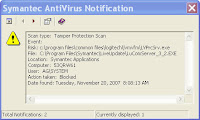
If you have a Logitech webcam installed you AND you update SAV to 10.1.7.x, you MAY receive an SAV alert box about a Tampering Protection scan.
This happened to me and this is what I did to get it resolved:

Go there - http://www.logitech.com/index.cfm/support_downloads/downloads/&cl=us,en
Select Product type - webcams
Select Product name - ie - Logitech pro 5000
Click greenish/blue arrow

Should see a picture of your webcam and QuickCam Pro 5000
Click Get Software

Select OS - Windows XP
Select File - Multilingual 32-bit
Click Download Software

Click Save
Save to your desktop
Once downloaded, double-click on the exe file (ie. qc1150.exe)
Allow to install and follow the steps on screen.
NOTE: You will need to unplug and re-plug your camera during the installation so follow the instructions on screen.

Once the new Logitech software was installed, it opened and wanted me to test the audio and wizard.

And...no more SAV alerts!