Wednesday, October 13, 2010

Sun Releases Java(TM) 6 Update 22

As of October 12, 2010, the current version of Sun's Java client is Java(TM) 6 Update 22.

Action Required:
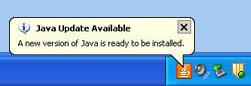
If you see the Java Update icon or "Java Update Available" balloon in the lower right corner of the screen, the latest version of Java should be ready to install. You can click the icon and follow its prompts to apply the update.

Note: We recommend that you do not install any offered "extras" like Carbonite Backup, Microsoft's Bing Toolbar, MSN Toolbar, or OpenOffice.org Installer. Please un-check these options if they appear.

Or, our How To Update Sun's Java Software has complete steps on how to install Java from either the "Java Update Available" message or how to download and install Java manually .

Fixed:
Java SE 6 Update 22 includes performance improvements, several security vulnerabilities fixes, and support for new platforms. The full list of changes may be found here: http://www.oracle.com/technetwork/java/javase/6u22releasenotes-176121.html

Monday, October 11, 2010

Security Alert - The name of the security certificate is invalid or does not match the name of the site

College of Ag Science faculty and staff with accounts of the Exchange server managed by Ag IT have reported the following Security Alert message when Outlook is opened.

Ag IT is working on fixing this issue causing the message. The issue is server-related but it is NOT a security risk to say "Yes" since the security certificate is OK.

As a workaround, you can hide the error message at the bottom of the screen so it doesn't pop up in your face again once you close the message.

Check back here for an update on this issue.

UPDATE: 9:53 AM The security certificate issue has been resolved and users should no longer get the pop up. If you still see the message, please close and reopen Outlook.

Tuesday, October 05, 2010

Security updates available for Adobe Reader and Acrobat

Adobe shipped a critical security update to its Adobe products on October 5, 2010 that addresses a vulnerability that can cause the application to crash and allow an attacker to take control of the affected system.

Note: To determine the version of any of the above applications, open the Adobe program. Then from the Help menu choose About Adobe, (name of program). You should see the version listed in a new box. Then, you can click anywhere on this box to close it.

The current version of the Adobe Acrobat and Adobe Reader is version 9.4.0. If you have an earlier version of Adobe Acrobat Professional, version 8, Adobe has released an 8.2.5 update as well.

Action Required: Ag IT recommends that College of Ag Science faculty and staff update any Adobe products to the current version.

Note: Along with applying this update, we also recommend that you follow these steps to Secure Adobe Reader to Prevent Malware once you have your Adobe products updated!!

  1. To update Adobe Reader 9 to the current version, follow our How To Install and Configure Adobe Reader v9 for Windows.

  2. If your computer has Adobe Acrobat Professional v8 or v9 installed as well, you should be able to use the built-in Updater program to update the software.
    a) From the Help menu choose Check for Updates.
    b) If updates were found, follow the on-screen steps to update.

    Note: If an update is downloaded, close Adobe before applying the update.
    Then re-open Adobe. Repeat steps a - b until no more updates are available.

    Note: If the automatic updater does not find the latest updates, and your version is not the most current one, go to the Acrobat for Windows downloads page. Scroll down to locate the update for your version. Download and install.

    Note: Earlier versions of Adobe Acrobat Professional (version 7 or lower) will not be patched.
If you have Adobe Reader version 8.x on your computer, you should remove this version and update to Adobe Reader 9.3. See our How To Install and Configure Adobe Reader v9 for Windows.

The Adobe Security bulletin, Security Updates available for Adobe Reader and Acrobat, has additional information and links.

Monday, September 20, 2010

Security Update Released for Adobe Flash Player

On September 20, 2010 Adobe released a Security advisory called Security update available for Adobe Flash Player that announced the availability of an update to their Flash Player 10 software. (Note: this update corrects a dangerous security hole in Flash Player that hackers have been exploiting to break into vulnerable systems.) The advisory states in part:

Summary
Critical vulnerabilities have been identified in Adobe Flash Player version 10.1.82.76 and earlier. These vulnerabilities could cause the application to crash and could potentially allow an attacker to take control of the affected system.

Affected software versions
Adobe Flash Player 10.1.82.76 and earlier versions

Severity rating
Adobe categorizes these as
critical issues and recommends affected users patch their installations.

Action Required: Ag IT recommends that you update the Adobe Flash Player on your Enterprise machine to mitigate the effects of malicious SWF (Shockwave Flash) files that you might view in your web browser.

For steps, see our How To Install Updates to Adobe Flash Player, http://agsci.psu.edu/it/how-to/install-updates-to-adobe-flash-player.

Note: If you use multiple browsers, perform the check for each browser you have installed on your computer.

Thursday, September 16, 2010

QuickTime 7.6.8 Update Released

On September 15, 2010, an updated version of QuickTime was released (7.6.8). This update fixes an issue where a maliciously crafted website may lead to an unexpected application termination or arbitrary code execution. In simple terms, malware could be installed on your computer. See more details here (Scroll down to the Security Updates section and click the link for QuickTime 7.6.8).

Action Required: Please see our How To Install QuickTime for Windows using the Standalone Installer for steps on updating QuickTime to the latest version.

QuickTime is installed on all Enterprise computers. Apple's QuickTime software allows your Enterprise computer to view graphics, videos, on-line video streams (ex: Candidate Interviews in the College), and more.

Friday, August 20, 2010

Security updates available for Adobe Reader and Acrobat

Adobe shipped a critical security update to its Adobe products on August 19, 2010 that addresses a vulnerability that can cause the application to crash and allow an attacker to take control of the affected system.

Note: To determine the version of any of the above applications, open the Adobe program. Then from the Help menu choose About Adobe, (name of program). You should see the version listed in a new box. Then, you can click anywhere on this box to close it.

The current version of the Adobe Acrobat and Adobe Reader is version 9.3.4. If you have an earlier version of Adobe Acrobat Professional, version 8, Adobe has released an 8.2.4 update as well.

Action Required: Ag IT recommends that College of Ag Science faculty and staff update any Adobe products to the current version.

Note: Along with applying this update, we also recommend that you follow these steps to Secure Adobe Reader to Prevent Malware once you have your Adobe products updated!!

  1. To update Adobe Reader 9 to the current version, follow our How To Install and Configure Adobe Reader v9 for Windows.

  2. If your computer has Adobe Acrobat Professional v8 or v9 installed as well, you should be able to use the built-in Updater program to update the software.
    a) From the Help menu choose Check for Updates.
    b) If updates were found, follow the on-screen steps to update.

    Note: If an update is downloaded, close Adobe before applying the update.
    Then re-open Adobe. Repeat steps a - b until no more updates are available.

    Note: If the automatic updater does not find the latest updates, and your version is not the most current one, go to the Acrobat for Windows downloads page. Scroll down to locate the update for your version. Download and install.

    Note: Earlier versions of Adobe Acrobat Professional (version 7 or lower) will not be patched.
If you have Adobe Reader version 8.x on your computer, you should remove this version and update to Adobe Reader 9.3. See our How To Install and Configure Adobe Reader v9 for Windows.

The Adobe Security bulletin, Security Updates available for Adobe Reader and Acrobat, has additional information and links.

Wednesday, August 18, 2010

QuickTime 7.6.7 Update Released

On August 12, 2010, an updated version of QuickTime was released (7.6.7). This update fixes an issue where opening a maliciously movie file may lead to an unexpected application termination or arbitrary code execution. In simple terms, malware could be installed on your computer. See more details here (Scroll down to the Security Updates section and click the link for QuickTime 7.6.7).

Action Required: Please see our How To Install QuickTime for Windows using the Standalone Installer for steps on updating QuickTime to the latest version.

QuickTime is installed on all Enterprise computers. Apple's QuickTime software allows your Enterprise computer to view graphics, videos, on-line video streams (ex: Candidate Interviews in the College), and more.

Wednesday, August 11, 2010

Security Update Released for Adobe Flash Player

On August 10, 2010 Adobe released a Security advisory called Security update available for Adobe Flash Player that announced the availability of an update to their Flash Player 10 software. (Note: this update corrects at least 6 security vulnerabilities.) The advisory states in part:

Summary
Critical vulnerabilities have been identified in Adobe Flash Player version 10.1.53.64 and earlier. These vulnerabilities could cause the application to crash and could potentially allow an attacker to take control of the affected system.

Affected software versions
Adobe Flash Player 10.1.53.64 and earlier versions

Severity rating
Adobe categorizes these as
critical issues and recommends affected users patch their installations.

Action Required: Ag IT recommends that you update the Adobe Flash Player on your Enterprise machine to mitigate the effects of malicious SWF (Shockwave Flash) files that you might view in your web browser.

For steps, see our How To Install Updates to Adobe Flash Player, http://agsci.psu.edu/it/how-to/install-updates-to-adobe-flash-player.

Note: If you use multiple browsers, perform the check for each browser you have installed on your computer.

Friday, August 06, 2010

UPDATE: Network issues have been resolved

We have resolved the network issues and all services have been restored.
Thank you for your patience.

Network outage and slowness

We are currently experiencing network issues, which may cause some services to be unavailable or slow. We are working on these issues and we apologize for the inconvenience.


Posted 11:40 AM, 8/6/10

Thursday, July 29, 2010

Sun Releases Java(TM) 6 Update 21

As of July 28, 2010, the current version of Sun's Java client is Java(TM) 6 Update 21.

Action Required:
If you see the Java Update icon or "Java Update Available" balloon in the lower right corner of the screen, the latest version of Java should be ready to install. You can click the icon and follow its prompts to apply the update.

Note: We recommend that you do not install any offered "extras" like Carbonite Backup, Microsoft's Bing Toolbar, MSN Toolbar, or OpenOffice.org Installer. Please un-check these options if they appear.

Or, our How To Update Sun's Java Software has complete steps on how to install Java from either the "Java Update Available" message or how to download and install Java manually .

Fixed:
Java SE 6 Update 21 does NOT contain any additional fixes for security vulnerabilities to its previous release, Java SE 6 Update 20. Users who have Java SE 6 Update 20 have the latest security fixes and do not need to upgrade to this release to be current on security fixes. The full list of changes may be found here: http://www.oracle.com/technetwork/java/javase/releasenotes-136954.html

Wednesday, June 30, 2010

Security updates available for Adobe Reader and Acrobat

Adobe shipped a critical security update to its Adobe products on June 29, 2010 that addresses a vulnerability that can cause the application to crash and allow an attacker to take control of the affected system.

Note: To determine the version of any of the above applications, open the Adobe program. Then from the Help menu choose About Adobe, (name of program). You should see the version listed in a new box. Then, you can click anywhere on this box to close it.

The current version of the Adobe Acrobat and Adobe Reader is version 9.3.3. If you have an earlier version of Adobe Acrobat Professional, version 8, Adobe has released an 8.2.3 update as well.

Action Required: Ag IT recommends that College of Ag Science faculty and staff update any Adobe products to the current version.

Note: Along with applying this update, we also recommend that you follow these steps to Secure Adobe Reader to Prevent Malware once you have your Adobe products updated!!

  1. To update Adobe Reader 9 to the current version, follow our How To Install and Configure Adobe Reader v9 for Windows.

  2. If your computer has Adobe Acrobat Professional v8 or v9 installed as well, you should be able to use the built-in Updater program to update the software.
    a) From the Help menu choose Check for Updates.
    b) If updates were found, follow the on-screen steps to update.

    Note: If an update is downloaded, close Adobe before applying the update.
    Then re-open Adobe. Repeat steps a - b until no more updates are available.

    Note: If the automatic updater does not find the latest updates, and your version is not the most current one, go to the Acrobat for Windows downloads page. Scroll down to locate the update for your version. Download and install.

    Note: Earlier versions of Adobe Acrobat Professional (version 7 or lower) will not be patched.
If you have Adobe Reader version 8.x on your computer, you should remove this version and update to Adobe Reader 9.3. See our How To Install and Configure Adobe Reader v9 for Windows.

The Adobe Security bulletin, Security Updates available for Adobe Reader and Acrobat, has additional information and links.

Tuesday, June 29, 2010

Update: Exchange/Mail issues

Microsoft Outlook/Exchange issues have been resolved. If you are still having issues, please reboot your computer and try Outlook again. If this does not fix the issue please submit a help request ticket.

Exchange/Mail issues

We are currently experiencing some Microsoft Outlook/Exchange issues. Ag IT is aware of the issue and we are working to resolve it. We apologize for the inconvenience!

Monday, June 21, 2010

ALERT: Adobe Connect Recording Changes

Since the Adobe Connect upgrade to version 7.5 that occurred in Mid-May, we have discovered a significant change in the way Adobe Connect handles meeting recordings. In the past, if you had an Adobe Connect meeting room that was accessible to anyone who knew and logged into the meeting room URL, recordings from that room were also accessible by anyone (without the need to log in to view the recording).

Since the upgrade, ALL meeting recordings that are created are set to a “Private” status. Prior to publishing or sharing the recording URL, a HOST will need to change the recording status to “Public”; otherwise, users attempting to view an Adobe Connect recording may get the following error.

Not Authorized. You do not have permission to access this item.

To resolve this issue, a host of the Adobe Connect meeting room will need to follow these steps to make the recordings accessible to the public. NOTE: A host will need to do this for ALL recordings they want others to be able to view/access.

  1. Log into the Adobe Connect meeting room where the recording took place
  2. From the Meeting menu in the upper left corner, select the Manage Meeting Information option and a new browser window will open
  3. In the new browser window, click the Recordings link that is on the link bar directly above the gray Meeting Information bar
  4. Check the box beside the recording(s) that should be accessible to the public
  5. Check the top box (to the left of the Name header) to select all of the recordings
  6. Click the Make Public button
  7. Close the browser window
If you have additional questions, please feel free to submit a help request.

Thursday, June 17, 2010

Audio Issues (No Sound) After June 2010 Windows XP Updates

Last week Windows updates were applied which caused a high volume of issues concerning audio devices. Users were reporting that they no longer had sound coming from speakers/headsets. The sounds were now coming from the System speaker which is located inside the computer.

If you are experiencing an issue with sound please follow the steps below to resolve. To verify your computer was impacted by this issue:
  1. From the Start menu choose Control Panel.


  2. Open the Sound and Audio Devices control panel.


  3. Click the Volume tab and "No audio device" will appear.

    If you have "No audio device" please close all programs and follow these steps.

Edit Machine.INF file

  1. Open My Computer.


  2. From the Tools menu choose Folder Options.


  3. Click View tab.


  4. Click Show hidden files and folders.


  5. Click OK.


  6. Open Local Disk (C:).


  7. Open the Windows folder. If you see a warning message about "These files are hidden...", click Show the contents of this folder.


  8. Locate and open the inf folder (it will appear 'grayed' out).


  9. From the View menu choose Details.


  10. Press the M key. This should highlight the file called machine.inf.


  11. Right-click on machine.inf and choose Copy.


  12. Minimize the C:\Windows\inf window to get it out of the way.


  13. Right-click on a blank area of your desktop and choose Paste. (this will create a copy of the machine.inf on the desktop)


  14. Right click on machine.inf file on YOUR DESKTOP and click Open With....


  15. Highlight Notepad. Click OK. (this will open Notepad program)


  16. Scroll down to the section that is called [ControlFlags].


  17. Highlight and remove this line:

    ExcludeFromSelect=*

  18. From the File menu choose Save. Close Notepad.

Force Refresh of Audio Device

  1. From the Start menu choose Control Panel.


  2. Open the Add Hardware control panel.


  3. When the Welcome to the Add Hardware Wizard appears, click Next.


  4. Wait for it to search for new hardware.


  5. Choose Yes, I have already connected the hardware and click Next.


  6. Scroll to the bottom of the Installed hardware list and select Add a new hardware device and click Next.


  7. Choose Install the hardware that I manually select from a list (Advanced) and click Next.


  8. Under Common hardware types, select Show All Devices and click Next.


  9. Wait for it to find all devices. (this will take as long as 30 - 60 seconds)


  10. Click Have Disk. Click Browse.


  11. From the Look in: drop down list, choose Desktop.


  12. Highlight machine.inf and click Open.


  13. Click OK.


  14. Under Manufacturer, at the top of the list, select (Standard system devices).


  15. Under Model, scroll down to select Plug and Play Software Device Enumerator and click Next.


  16. To start installing the drivers, click Next.


  17. Wait for the software to install then click Finish.


  18. Once finished, reboot your machine.


  19. Test sound.

    If sound still does not play or if you have any questions please let us know. Send email to AgCompSupport@psu.edu, call us at (814) 865-1229 or submit a Help Request on the web at http://agsci.psu.edu/it/help-request.

  20. If the sound is now working again, please delete the machine.inf file you copied to the desktop.

Friday, June 11, 2010

Security Update Released for Adobe Flash Player

On June 10, 2010 Adobe released a Security advisory called Security update available for Adobe Flash Player that announced the availability of an update to their Flash Player 10 software. (Note: this is a SIGNIFICANT update for Adobe Flash Player that corrects 32 security vulnerabilities.) The advisory states in part:

Summary
Critical vulnerabilities have been identified in Adobe Flash Player version 10.0.45.2 and earlier. These vulnerabilities could cause the application to crash and could potentially allow an attacker to take control of the affected system.

Affected software versions
Adobe Flash Player 10.0.45.2 and earlier versions

Severity rating
Adobe categorizes these as
critical issues and recommends affected users patch their installations.

Action Required: Ag IT recommends that you update the Adobe Flash Player on your Enterprise machine to mitigate the effects of malicious SWF (Shockwave Flash) files that you might view in your web browser.

For steps, see our How To Install Updates to Adobe Flash Player, http://agsci.psu.edu/it/how-to/install-updates-to-adobe-flash-player.

Note: If you use multiple browsers, perform the check for each browser you have installed on your computer.

Friday, May 14, 2010

Unable to Access Adobe Connect Recordings

Since the Adobe Connect server was upgraded on May 13th you may receive reports of previously recorded Adobe Connect session not being accessible.

Users attempting to view an Adobe Connect recording may get the following error:

Not Authorized. You do not have permission to access this item.

To resolve this issue, the host of the Adobe Connect meeting room will need to follow these steps to make the recordings accessible to the public.
  1. Log into the Adobe Connect meeting room where the recording took place
  2. From the Meeting menu in the upper left corner, select the Manage Meeting Information option and a new browser window will open
  3. In the new browser window, click the Recordings link that is on the link bar directly above the gray Meeting Information bar
  4. Check the box beside the recording(s) that should be accessible to the public
  5. Check the top box (to the left of the Name header) to select all of the recordings
  6. Click the Make Public button
  7. Close the browser window
If you have any questions, please feel free to contact the IT Help Desk.

Wednesday, May 12, 2010

Adobe Connect meetings unavailable May 13, 2010

This is a reminder that you will NOT be able to log into ANY Adobe Connect meeting spaces on May 13, 2010. ITS will be performing an upgrade to the Adobe Connect Professional service that will impact all Adobe Connect Pro services.

If you’d like to read more, here’s an article that appeared in eNews: http://agsci.psu.edu/it/news/2010/04/agsci-news-its-plans-upgrade-to-adobe-connect-server-on-may-13th

Services will resume on May 14, 2010. If you have questions, please enter an AgIT Help Desk Request: http://agsci.psu.edu/it/help-request or contact the Penn State Adobe Connect team: breeze@psu.edu

Monday, May 10, 2010

Dubious Facebook pages scam you, Send Spam to your Friends

Chris Boyd, a security researcher at Sunbelt software, has reported how dubious Facebook pages can trick you into spamming people on your Facebook friends list.

The scheme relies on you manually copying and pasting information into your browser's address bar and then into completing a "survey." If you complete the survey and follow instructions on several misleading dialog boxes, you would be giving away the keys to the kingdom and grant access to your friends list to the scammers.

To read Chris Boyd's May 9, 2010 blog post and see sample screenshots of the ruse in action, go here:

http://sunbeltblog.blogspot.com/2010/05/javascript-code-this-on-facebook.html