Wednesday, October 28, 2009

2009 National eXtension Conference Recordings

eXtension held its first National eXtension Conference in St. Louis, MO October 20-23, 2009. Many sessions were web cast and recorded for future viewing. The following is a list of the conference's general and breakout sessions. You will be able to view and hear a recorded session by clicking on the link below each item.

General Sessions:

Wednesday, October 21, 2009

Get There Early: Sensing the Future to Compete in the Present
Bob Johansen, Institute for the Future
http://connect.extension.iastate.edu/p53095789/

Ask an Expert Task Force Results
Kevin Gamble, eXtension Associate Director of Technology
http://connect.extension.iastate.edu/p12261706/

Institutionalization of eXtension Panel
Representatives from each Extension Region
http://connect.extension.iastate.edu/p20232503/

USDA Perspective
Roger N. Beachy, Director of the National Institute of Food and Agriculture (NIFA), United State Department of Agriculture
http://connect.extension.iastate.edu/p39714451/

Thursday, October 22, 2009

Embracing the Chaos (& other scary tales from the social web)
Tara Hunt, Author, The Whuffie Factor, Co-founder and Chief Marketing Officer, Citizen Agency
http://connect.extension.iastate.edu/p26037816/

Friday, October 23, 2009

Cultivating Partnerships and Resource Development Panel

  • Michael Ouart, Vice Provost for Extension, University of Missouri Extension, Chair, eXtension Finance Committee
  • James Wade, Executive Director, ECOP, and Director of Extension and Outreach, Association of Public and Land- grant Universities
  • Deborah Sheely, Deputy Administrator, Competitive Programs, National Institute of Food and Agriculture
  • Cathann Kress, Office of the Deputy Under Secretary of Defense Military Community and Family Policy
  • Randel Raub, Director of Research and New Product Development, Purina Mills
  • Michael McGirr, National Program Leader, Sustainable Development, Global Engagement, National Institute of Food and Agriculture
http://connect.extension.iastate.edu/p29888201/

National eXtension Awards

  • Community of Practice Partnership Award
  • Community of Practice Individual Achievement Awards
  • Outstanding Community of Practice
  • eXtension Champion Award
http://connect.extension.iastate.edu/p46899902/

Note: You can read the official announcement of the winners here:
http://www.extension.org/pages/eXtension_Honors_Outstanding_Educators_and_Teams

Closing Comments
Keith L. Smith, Director, Ohio State University ExtensionIncoming Chair of the eXtension Governing Committee
http://connect.extension.iastate.edu/p72493462/


Breakout Sessions:


Wednesday, October 21

How to Host Your Own Webinar and Why
Floyd Davenpor
thttp://connect.extension.iastate.edu/p25052985/

Technologies for Creating Educational Content for Online Programs
Floyd Davenport
http://connect.extension.iastate.edu/p99441424/

Yes, a multi-state collaboration can produce success, plus more!
Jody Johnson
http://connect.extension.iastate.edu/p76983911/

How the Virtual News Room Works for You
Lynette Spicer
http://connect.extension.iastate.edu/p48401053/

Thursday, October 22

Sensemaking for Qualitative Research: The research methodologies used by the Ask an Expert Task force
Kevin Gamble
http://connect.extension.iastate.edu/p14656678/

Using eXtension Tools, Technologies, and Concepts to Improve Extension Work
Jerold R. Thomas
http://connect.extension.iastate.edu/p22517464/

Guidelines for Information Technology-based Promotion & Tenure Expectations and Metrics: A Proposal
Robert Hughes, Jr.
http://connect.extension.iastate.edu/p88595072/

Implementing the eXtension Widget on County web sites in Ohio: A case study
Jerry Thomas
http://connect.extension.iastate.edu/p42389451/

Evaluate Your Content with Google Analytics (by Category)
Ben MacNeill
http://connect.extension.iastate.edu/p33068519/

Be, Grow, Create Phase 2 @ Oregon State
Mark Anderson-Wilk, Alex Stone, and John McQueen
http://connect.extension.iastate.edu/p53661579/

Introducing ideas for establishing a social media strategy
Anne Adrian
http://connect.extension.iastate.edu/p97065919/

Assessing County Extension Program’s Readiness to Adopt Technology: They Don’t Know What They Don’t Know
Dana Martin and Jeff Hino
http://connect.extension.iastate.edu/p35128725/

Effective Review Standards: The Role of Authors, Editors, Reviewers, Users, and Communicators in Quality Control and Usability
Mark Anderson-Wilk
http://connect.extension.iastate.edu/p61842397/

A Creative Approach to Generating eXtension Publications in the Family Caregiving CoP
Amy F. Hosier
http://connect.extension.iastate.edu/p44999712/

Tuesday, October 13, 2009

Updates for Adobe Reader 9 and Adobe Acrobat Professional 7, 8, & 9 Are Available

Adobe shipped a critical security update to its Adobe products on Oct 13, 2009 that addresses a vulnerability that can cause the application to crash and allow an attacker to take control of the affected system.

Note: To determine the version of any of the above applications, open the Adobe program. Then from the Help menu choose About Adobe, (name of program). You should see the version listed in a new box. Then, you can click anywhere on this box to close it.

The current version of the Adobe Acrobat and Adobe Reader is version 9.2. If you have earlier versions of Adobe Acrobat Professional, version 7 or 8, Adobe has released 7.1.4 and 8.1.7 updates as well.

Action Required: Ag IT recommends that College of Ag Science faculty and staff update any Adobe products to their current version.
  1. To update Adobe Reader 9 to the current version, follow our How To Install and Configure Adobe Reader v9 for Windows.

  2. If your computer has Adobe Acrobat Professional v7, v8, or v9 installed as well, you should be able to use the built-in Updater program to update the software.
    a) From the Help menu choose Check for Updates.
    b) When the update is ready, click Install Now.
    c) Follow the rest of the prompts to install the update.

    Note: If the automatic updater does not find the latest updates, and your version is not the most current one, go to the Acrobat for Windows downloads page. Scroll down to locate the update for your version. Download and install.

    Note: Earlier versions of Adobe Acrobat Professional (version 6 or lower) will not be patched.
If you have Adobe Reader version 8.x on your computer, you should remove this version and update to Adobe Reader 9.2. See our How To Install and Configure Adobe Reader v9 for Windows.

The Adobe Security bulletin, Security Updates available for Adobe Reader and Acrobat, has additional information and links.

Monday, September 21, 2009

Malware Ads from Good Web Sites (How To Respond to an ‘Antivirus’ Pop-Up Ad)

The New York Times has published an article Times Web Ads Show Security Breach on September 14, 2009. This article responds to the malware ads that were seen through their web site over the weekend of September 12 - 13, 2009. The article includes the following:

"OVER the weekend, some visitors to the Web site of The New York Times received a nasty surprise. An unknown person or group sneaked a rogue advertisement onto the site’s pages. The malicious ad took over the browsers of many people visiting the site, as their screens filled with an image that seemed to show a scan for computer viruses. The visitors were then told that they needed to buy antivirus software to fix a problem, but the software was more snake oil than a useful program.

The creator of the malicious ads posed as Vonage, the Internet telephone company, and persuaded NYTimes.com to run ads that initially appeared as real ads for Vonage. At some point, possibly late Friday, the campaign switched to displaying the virus warnings.

Because The Times thought the campaign came straight from Vonage, which has advertised on the site before, it allowed the advertiser to use an outside vendor that it had not vetted to actually deliver the ads.
"

Here is the image of the fake antivirus scan from the web site of The New York Times.


As this article from The Times illustrates, even well-known "safe" web sites can harbor malicious links and software.

We have seen an increase in these fake antivirus software scans in the College.

What should you do if you are suddenly bombarded with these fake ads? You can print our How To Respond to an ‘Antivirus’ Pop-Up Ad. Review these steps and be ready to follow them if you are faced with these pop-ups.

http://it.cas.psu.edu/1926.htm

Friday, September 11, 2009

QuickTime 7.6.4 Update Released

On September 9, 2009, an updated version of QuickTime was released (7.6.4). This update fixes an issue where opening a maliciously crafted movie file or FlashPix file may lead to an unexpected application termination or arbitrary code execution. In simple terms, malware could be installed on your computer. See more details here (Scroll down to the Security Updates section and click the link for QuickTime 7.6.4).

QuickTime is installed on all Enterprise computers. Apple's QuickTime software allows your Enterprise computer to view graphics, videos, on-line video streams (ex: Candidate Interviews in the College), and more.

Action Required: Please see our How To Install QuickTime for Windows using the Standalone Installer for steps on updating QuickTime to the latest version.

Friday, August 21, 2009

Updates to Adobe Presenter v7 available

Adobe has just released an update (7.0.5) for Adobe Presenter 7 which will help with PowerPoint conversion, audio editing, accessibility and some other fixes.

For more information about the update and fixes, go here.

Action Required for Adobe Presenter v7 users:
You can download the latest update here or you can update via the Help button on the Adobe Presenter tab in PowerPoint 2007.

Thursday, August 13, 2009

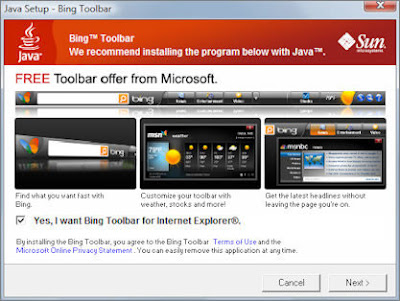
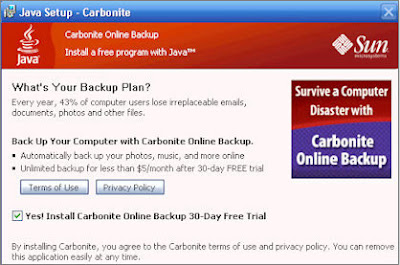
Sun Java Updates Offer Unneeded 3rd Party Software

Java Platform, Standard Edition or Java SE, is used by your computer to run certain web based applications. These may include web based training applications.

If you see the Java Update icon or "Java Update Available" balloon in the lower right corner of the screen, the latest version of Java is ready to install. You can click the icon and follow its prompts to apply the update.

Note: We have always recommended that you do not install any offered "extras" like the MSN Toolbar, OpenOffice.org Installer or Microsoft's Bing.


Recently, the Java installer may also "offer" a 30-day trial of Carbonite Inc.'s commercial backup software.


Please un-check these options if they appear. You do NOT need them as part of the Java install.

Wednesday, August 05, 2009

Updates for Adobe Reader 9 and Adobe Acrobat Professional 9 Are Available

Adobe shipped a out-of-cycle security update to Adobe Reader 9 and Acrobat 9 products on July 30, 2009. This update patches a critical security vulnerability while providing more stability.

Note: To determine the version of any of the above applications, open the Adobe program. Then from the Help menu choose About Adobe, (name of program). You should see the version listed in a new box. Then, you can click anywhere on this box to close it.

The current version of Adobe Acrobat and Adobe Reader is version 9.1.3.

Note: If you have Adobe Reader version 8.x on your computer, you should remove this version and update to Adobe Reader 9.1.3. See our How To Install and Configure Adobe Reader v9 for Windows.

Action Required: Ag IT recommends that College of Ag Science faculty and staff update any Adobe products to their current version.

To apply these updates:

  1. Close all other programs and then open your version of Adobe Reader or Acrobat Professional.
  2. From the Help menu choose Check for Updates.
  3. If updates were found, they should begin to download. If not, click the Download and Install Updates button. If asked, click Install Now.
  4. The updater will prompt you to close the program before the update can be installed. Click Continue.

    Note: The Installation Progress window may be minimized to the lower right of the screen (in the notification tray). To see the Installation Progress window, right click on its white icon and choose Show Progress.

  5. When the process completes, click Quit.
  6. The Adobe Reader or or Acrobat Professional program will re-open.
  7. From the Help menu choose Check for Updates. If no updates are available, click Quit.
  8. Close Adobe Reader or or Acrobat Professional.
Note: Earlier versions of Adobe Acrobat Professional (version 8 or lower) will not be patched.

The Adobe Reader and Acrobat 9.1.3 Release Notes has additional information and links.

Sun Releases Java(TM) 6 Update 15

As of Aug 4, 2009, the current version of Sun's Java client is Java(TM) 6 Update 15.

Action Required:
If you see the Java Update icon or "Java Update Available" balloon in the lower right corner of the screen, the latest version of Java should be ready to install. You can click the icon and follow its prompts to apply the update. Note: We recommend that you do not install any offered "extras" like the MSN Toolbar, OpenOffice.org Installer or Microsoft's Bing. Please un-check these options if they appear.

Or, our How To Update Sun's Java Software, http://it.cas.psu.edu/260.htm, has complete steps on how to install Java from either the "Java Update Available" message or how to download and install Java manually .

Fixed:
This release contains fixes for one or more security vulnerabilities. The full list of changes may be found here: http://java.sun.com/javase/6/webnotes/6u15.html

Note:
Previously, older versions of Sun Java were not removed from your computer when you updated. You had to manually remove older versions of Sun Java from your computer. This has now changed. You no longer need to remember to remove the previous Java version.

Friday, July 31, 2009

Security Updates Available for Adobe Flash Player

On July 30, 2009 Adobe released a Security advisory called Security updates available for Adobe Flash Player that announced the availability of an update to their Flash Player 10 software. The advisory states in part:

Summary
Critical vulnerabilities have been identified in the current versions of Adobe Flash Player (v9.0.159.0 and v10.0.22.87) for Windows, Macintosh and Linux operating systems. These vulnerabilities could cause the application to crash and could potentially allow an attacker to take control of the affected system.

Affected software versions
Adobe Flash Player 9.0.159.0 and 10.0.22.87 and earlier 9.x and 10.x versions

Severity rating
Adobe categorizes these as
critical issues and recommends affected users patch their installations.

Action Required: Ag IT recommends that you update the Adobe Flash Player on your Enterprise machine to mitigate the effects of malicious SWF (Shockwave Flash) files that you might view in your web browser.

For steps, see our How To Install Updates to Adobe Flash Player, http://it.cas.psu.edu/1590.htm.

Note: If you use multiple browsers, perform the check for each browser you have installed on your computer.

Thursday, July 23, 2009

ITS updates Adobe Connect server - Action Required

Attention: Adobe Connect users – Action Required

This morning (Thursday, July 23, 2009) Penn State’s ITS installed the Adobe Connect Pro 7 Service Pack 3.

Along with this SP3 install, there is an updated add-in (version 9.1.314.0) which addresses VOIP and Audio enhancements listed below.
We encourage users to download this latest add-in by doing these steps:

• Go to the Adobe Connect Community Check List at http://meeting.psu.edu/checklist
• Run the "test your computer and Internet connection" option by clicking on the link listed in Step 3
• Click Yes if you receive a Security Warning

Issues resolved with Service Pack 3

Meeting Rooms:
[0127905] Meeting: The first item in the Q&A Pod list is selected by default now which does not make it appear as though longer questions cannot be displayed in full anymore. All selected question text shows in the details panel. In the case in which a very long question is asked and therefore truncated in the preview pane, all text will be visible in the details pane. This capability is now more discoverable by the user.

[2302406] Meeting: The same presentation (PPT or PPTX) can now be loaded into two share
pods in the same meeting at the same time without causing any intermittent upload errors.

[1920524] Meeting, Mac only: Sharing Full Screen on certain Mac versions, in certain Safari and Firefox browsers caused user to be ejected from the meeting room, and browser to crash. This issue has been resolved.

[1920869] Meeting, Recording: Recording playback sometimes shows black or gray screen when paused or seeking. This issue now has been resolved.

[1922961/1880973] Meeting, Recording: Recordings now play the events that occurred within the meeting, as they occurred, including changes in layouts.

[1913089] Meeting, Recording: Recordings now do not show a black screen or cut out
Intermittently.

[1910223] Meeting, Recording: Forced Recordings do start now when enabled and applied to systems with specific license keys. They are now working properly with valid license keys.

[1913261] Meeting, Whiteboard/Recording: Playback scale adjustments have been applied
to recording so that all whiteboard content is displayed now even when using certain screen resolutions.

[1930490] Meeting, Poll Pod: A scroll bar is displayed in the meeting poll pod so that all options are now visible to the user even when many options are provided in Poll questions.

Wednesday, July 22, 2009

Adobe Presenter updates available

There are currently 2 important updates to Adobe Presenter Version 7.0. They include audio enhancements and fixes, better performance with PowerPoint .pptx files and quizzing features.

Action Required for Adobe Presenter v7 users:
To properly install the updates they must be installed in the correct order. First install the Adobe Presenter 7.0.1 update, then the Adobe Presenter 7.0.2 update. Licensed Adobe Presenter users can install the updates from the following URL.
http://tinyurl.com/PresenterUpdate

If you are in a county office with a server, check out this path to install from your server.
Computer Resources > IT Camp Software > Adobe Presenter folder
- Double-click adobe_presenter_patch_v701.exe to install the first update
- Double-click adobe_presenter_patch_v702.exe to install the next update

Use the following links to review a full description of each update.
Important issues resolved in Adobe Presenter 7.0.1 update
http://kb2.adobe.com/cps/404/kb404919.html

Important issues resolved in Adobe Presenter 7.0.2 update
http://kb2.adobe.com/cps/407/kb407169.html

Friday, July 10, 2009

Phishing Attempts Aimed at Penn State Faculty and Staff

Faculty and staff are reminded that the college and university will *NEVER* request account/password information via E-mail.

You should never reply to a message asking for account information, nor should you ever click a link from a message that asks for account information. Penn State and the College of Ag Sciences will never ask for your account/password in this method.

If you receive messages of this type, simply delete the message.
Normally, Ag IT will not send alerts warning employees of individual phishing scams. These scams are too numerous to regularly keep on top of, so please remember legitimate entities do not request information in this manner.

However, in the past week we have seen new examples of phishing aimed at our employees. We are taking this opportunity to refresh in everyone's mind that these messages should be deleted if they make it past the college and university's spam filters.

Sample 1 below is a general attempt to have you click on the link. In this case, the link doesn't appear to show you a form. Instead the page attempts to download and install malware on your computer. If you receive messages of this type, simply delete the message.

Sample 1

Subject: Your Webmail Quota Has Exceeded The Set Quota/Limit

Your Webmail Quota Has Exceeded The Set Quota/Limit Which Is 20GB.
You Are Currently Running On 23GB Due To Hidden Files And Folder On Your Mailbox.

Please Click the Link Below To Validate Your Mailbox And Increase Your Quota.

w w w.jotform.com/form/9999999999
[number changed and link removed]
Failure To Click This Link And Validate Your Quota May Result In Loss Of Important Information In Your Mailbox/Or Cause Limited Access To It.

Sample 2 below is an example of a "spear-phishing" message. These messages are attacks aimed directly at a company, government agency, organization, or group. Spear phishers send E-mail that appear genuine to all the employees or members of these groups

You can read the sample E-mail below. It is a well crafted note! We've removed the actual link below. But if you were to receive an E-mail like this, you can hover (hold the mouse over the link without clicking) to see the destination address.

In the actual E-mail the address started with "http://psu.edu" but then added "ec-uk.org" as the actual destination. This will usually confirm what you knew anyway. So, simply delete the message.

Sample 2

From: PSU Help Desk [mailto:it_dept@psu.edu]
Subject: Mandatory Security Update: July 2009

The Pennsylvania State UniversityInformation Technology ServicesThe ITS Help Desk

URGENT SECURITY UPDATE - JULY 2009

Due to the recent increase in spam emails, we have upgraded to an advanced server for your premium security to prevent spam from getting to your inbox. As a result of this, it is important that you login to your email using the link below, to make sure that your account information is up-to-date.

Click Here to Protect Your Account [link removed]

This email has been sent to all PSU Webmail users and it is mandatory to follow.

Thank you for your cooperation.

IT DepartmentCopyright © 2009 The Pennsylvania State University


Sample 2 Image

If you had clicked the link, you would be taken to a page that mimicked the real Penn State WebAccess login window. But again, the actual address is fake.


The ITS Alerts site has a listing of E-mail (spam, phishing) alerts which gives you an idea of how prevalent these activities are.

Thursday, June 11, 2009

Sun Releases Java(TM) 6 Update 14

As of May 29, 2009, the current version of Sun's Java client is Java(TM) 6 Update 14.

Action Required:
If you see the Java Update icon or "Java Update Available" balloon in the lower right corner of the screen, the latest version of Java should be ready to install. You can click the icon and follow its prompts to apply the update. Note: We recommend that you do not install any offered "extras" like the MSN Toolbar, OpenOffice.org Installer or Microsoft's Live Search. Please un-check these options if they appear.

Or, our How To Update Sun's Java Software, http://it.cas.psu.edu/260.htm, has complete steps on how to install Java from either the "Java Update Available" message or how to download and install Java manually .

Fixed:
This release contains feature enhancements that includes support for Internet Explorer 8. The full list of changes may be found here: http://java.sun.com/javase/6/webnotes/6u14.html

Note:
Previously, older versions of Sun Java were not removed from your computer when you updated. You had to manually remove older versions of Sun Java from your computer. This has now changed. You no longer need to remember to remove the previous Java version.

Updates for Adobe Reader 9 and Adobe Acrobat Professional 7, 8, & 9 Are Available

Adobe shipped a critical security update to its Adobe products on June 9, 2009 that patches 13 critical bugs in Reader 9.1.1 and Acrobat 9.1.1 or earlier versions. This update resolves a stack overflow and integer overflow bugs that lead to code execution potential and Denial of Service attack/code execution. Additional memory corruption and heap overflow vulnerabilities were also fixed.

Note: To determine the version of any of the above applications, open the Adobe program. Then from the Help menu choose About Adobe, (name of program). You should see the version listed in a new box. Then, you can click anywhere on this box to close it.

The current version of Adobe Acrobat and Adobe Reader is version 9.1.2. If you have earlier versions of Adobe Acrobat Professional, version 7 or 8, Adobe has released 7.1.3 and 8.1.6 updates as well.

Note: If you have Adobe Reader version 8.x on your computer, you should remove this version and updater to Adobe Reader 9.1.1. See our How To Install and Configure Adobe Reader v9 for Windows.

Action Required: Ag IT recommends that College of Ag Science faculty and staff update any Adobe products to their current version.

To apply these updates:

  1. Close all other programs and then open your version of Adobe Reader or Acrobat Professional.
  2. From the Help menu choose Check for Updates.
  3. If updates were found, they should begin to download. If not, click the Download and Install Updates button.
  4. When the update is ready, click Install Now.
  5. The updater will prompt you to close the program before the update can be installed. Click Continue.

    Note: The Installation Progress window may be minimized to the lower right of the screen (in the notification tray). To see the Installation Progress window, right click on its white icon and choose Show Progress.

  6. When the process completes, click Quit.
  7. The Adobe Reader or or Acrobat Professional program will re-open.
  8. From the Help menu choose Check for Updates. If no updates are available, click Quit.
  9. Close Adobe Reader or or Acrobat Professional.
Note: Earlier versions of Adobe Acrobat Professional (version 6 or lower) will not be patched.

The Adobe Security bulletin, Security Updates available for Adobe Reader and Acrobat, has additional information and links.

Wednesday, June 03, 2009

QuickTime 7.6.2 Update Released

On June 1, 2009, an updated version of QuickTime was released (7.6.2). This update fixes an issue where opening a maliciously crafted movie file may lead to an unexpected application termination or arbitrary code execution. In simple terms, malware could be installed on your computer. See more details here (Scroll down to the Security Updates section and click the link for QuickTime 7.6.2).

QuickTime is installed on all Enterprise computers. Apple's QuickTime software allows your Enterprise computer to view graphics, videos, on-line video streams (ex: Candidate Interviews in the College), and more.

Action Required: Please see our How To Install QuickTime for Windows using the Standalone Installer for steps on updating QuickTime to the latest version.

Wednesday, May 13, 2009

Updates for Adobe Reader 9 and Adobe Acrobat Professional 7, 8, & 9 Are Available

Adobe shipped a critical security update to its Adobe products on May 12, 2009 that addresses a vulnerability that can cause the application to crash and allow an attacker to take control of the affected system.

Note: To determine the version of any of the above applications, open the Adobe program. Then from the Help menu choose About Adobe, (name of program). You should see the version listed in a new box. Then, you can click anywhere on this box to close it.

The current version of the Adobe Acrobat and Adobe Reader is version 9.1.1. If you have earlier versions of Adobe Acrobat Professional, version 7 or 8, Adobe has released 7.1.2 and 8.1.5 updates as well.

Note: If you have Adobe Reader version 8.x on your computer, you should remove this version and updater to Adobe Reader 9.1.1. See our How To Install and Configure Adobe Reader v9 for Windows.

Action Required: Ag IT recommends that College of Ag Science faculty and staff update any Adobe products to their current version.

To apply these updates:

  1. Close all other programs and then open your version of Adobe Reader or Acrobat Professional.
  2. From the Help menu choose Check for Updates.
  3. If updates were found, they should begin to download. If not, click the Download and Install Updates button.
  4. When the update is ready, click Install Now.
  5. The updater will prompt you to close the program before the update can be installed. Click Continue.

    Note: The Installation Progress window may be minimized to the lower right of the screen (in the notification tray). To see the Installation Progress window, right click on its white icon and choose Show Progress.

  6. When the process completes, click Quit.
  7. The Adobe Reader or or Acrobat Professional program will re-open.
  8. From the Help menu choose Check for Updates. If no updates are available, click Quit.
  9. Close Adobe Reader or or Acrobat Professional.
Note: Earlier versions of Adobe Acrobat Professional (version 6 or lower) will not be patched.

The Adobe Security bulletin, Security Updates available for Adobe Reader and Acrobat, has additional information and links.

Friday, March 27, 2009

Sun Releases Java(TM) 6 Update 13

As of March 26, 2009, the current version of Sun's Java client is Java(TM) 6 Update 13.

Action Required:
If you see the Java Update icon or "Java Update Available" balloon in the lower right corner of the screen, the latest version of Java should be ready to install. You can click the icon and follow its prompts to apply the update. Note: We recommend that you do not install any offered "extras" like the MSN Toolbar, OpenOffice.org Installer or Microsoft's Live Search. Please un-check these options if they appear.

Or, our How To Update Sun's Java Software, http://it.cas.psu.edu/260.htm, has complete steps on how to install Java from either the "Java Update Available" message or how to download and install Java manually .

Fixed:
This release contains feature enhancements and bug fixes. This full list of changes may be found here: http://java.sun.com/javase/6/webnotes/6u13.html

Note:
Previously, older versions of Sun Java were not removed from your computer when you updated. You had to manually remove older versions of Sun Java from your computer. This has now changed. You no longer need to remember to remove the previous Java version.

Thursday, March 19, 2009

Adobe Acrobat Professional Updates for version 7 and 8 Released

On March 11, 2009 Ag IT posted a Tech Alert about the "version 9.1.0 Update for Adobe Reader 9 and Adobe Acrobat 9 Professional is Available". In this Tech Alert it was recommended that College of Ag Science faculty and staff see our How To Install and Configure Adobe Reader v9 for Windows for steps on updating Adobe Reader to the current version.

However, there are a number of staff who use version 7 and 8 Adobe Acrobat Professional.

On March 18, 2009 Adobe has released updates for these versions as well.

The current version of Adobe Acrobat Professional 7 is now 7.1.1.The current version of Adobe Acrobat Professional 8 is now 8.1.4.

Action Required: Ag IT recommends that College of Ag Science faculty and staff who use either version 7 and 8 Adobe Acrobat Professional update their Adobe Acrobat Professional to these versions.

To apply these updates:

  1. Close all other programs and then open your version of Adobe Professional.
  2. From the Help menu choose Check for Updates.
  3. If updates were found, they should begin to download. If not, click the Download and Install Updates button.
  4. At this point, you can click the Adobe Professional window to make it active, then Exit Acrobat Professional. If you don't exit Adobe Professional, the updater will prompt you to close the program before the update can be installed.
  5. When the update is ready, click Install Now.

    Note: The Installation Progress window may be minimized to the lower right of the screen (in the notification tray). To see the Installation Progress window, right click on its white icon and choose Show Progress.

  6. When the process completes, you may be asked to restart.
Note: If you can't use the Adobe Updater to apply the updates, here are links to the individual updates. Click the needed link for your version. Then click Proceed to Download. Click Download Now. Click Open (rather than Save). Click Run. Click Update. When done, click Finish.
Note: In order to install these updates, you may need to install other updates first. For example, the 8.1.4 update can only be applied to Adobe Acrobat version 8.1.3. To find other updates, go to Acrobat for Windows - Downloads for their complete list of available updates.

Note: Earlier versions of Adobe Acrobat Professional (version 6 or lower) will not be patched.

Wednesday, March 11, 2009

version 9.1.0 Update for Adobe Reader 9 and Adobe Acrobat 9 Professional is Available

Adobe shipped a critical security update to its Adobe version 9 products on March 10, 2009 that addresses a vulnerability that can cause the application to crash and allow an attacker to take control of the affected system. There are reports that this issue is being exploited.

The current version of the Adobe Acrobat and Adobe Reader is version 9.1.0.

Action Required: Ag IT recommends that College of Ag Science faculty and staff see our How To Install and Configure Adobe Reader v9 for Windows for steps on updating Adobe Reader to the current version.

Note: To determine the version of either of the above applications, open the Adobe program. Then from the Help menu choose About Adobe, (name of program). You should see the version listed in a new box. Then, you can click anywhere on this box to close it.

If you have the "full" version of Adobe Acrobat, you can update this program via its updater feature. Open Adobe Acrobat 9 Professional. From the Help menu, choose Check for Updates. If updates are found, close Adobe Acrobat 9 Professional. Then, click Download and Install Updates. When they complete, restart the computer.

If you have Adobe Reader version 8.x on your computer, you should remove this version and updater to Adobe Reader 9.1.0. See our How To Install and Configure Adobe Reader v9 for Windows f

If you have earlier versions of Adobe Acrobat Professional, version 7 or 8, Adobe is planning to make updates available by March 18, 2009.

Sun Releases Java(TM) 6 Update 12

As of March 11, 2009, the current version of Sun's Java client is Java(TM) 6 Update 11.

Action Required:
If you see the Java Update icon or "Java Update Available" balloon in the lower right corner of the screen, the latest version of Java should be ready to install. You can click the icon and follow its prompts to apply the update. Note: We recommend that you do not install any offered "extras" like the MSN Toobar, OpenOffice.org Installer or Microsoft's Live Search. Please un-check these options if they appear.

Or, our How To Update Sun's Java Software, http://it.cas.psu.edu/260.htm, has complete steps on how to install Java from either the "Java Update Available" message or how to download and install Java manually .

Fixed:
This release contains feature enhancements and bug fixes. This full list of changes may be found here: http://java.sun.com/javase/6/webnotes/6u12.html

Note:
Previously, older versions of Sun Java were not removed from your computer when you updated. You had to manually remove older versions of Sun Java from your computer. This has now changed. You no longer need to remember to remove the previous Java version.

Thursday, February 26, 2009

Adobe Releases Flash Player 10 Update to Address Security Vulnerabilities

On February 24, 2009 Adobe released a Security advisory called Flash Player update available to address security vulnerabilities that announced the availability of updated Flash Player 10 software. The advisory states in part:

Summary
A potential vulnerability has been identified in Adobe Flash Player 10.0.12.36 and earlier that could allow an attacker who successfully exploits this potential vulnerability to take control of the affected system. A malicious SWF must be loaded in Flash Player by the user for an attacker to exploit this potential vulnerability. Additional vulnerabilities have been addressed in this update. Adobe recommends users update to the most current version of Flash Player available for their platform.

Affected software versions
Adobe Flash Player 10.0.12.36 and earlier.

Severity rating
Adobe categorizes this as a critical update and recommends affected users upgrade to version 10.0.22.87.

Action Required: Ag IT recommends that you update the Adobe Flash Player on your Enterprise machine to mitigate the effects of malicious SWF (Shockwave Flash) files that you might view in your web browser.

  1. To verify the Adobe Flash Player version number, you can visit the About Flash Player page. If this version is Flash Player 10.0.12.36 or earlier, please complete the remaining steps.
  2. To update to current Adobe Flash Player version, go to the Player Download Center.
  3. UN-CHECK any extra toolbars that are offered. Example: Google Toolbar.
  4. Click Agree and install now.
  5. Follow on-screen steps to install.
  6. When the installation completes, you should see the current version of Flash Player (10.0.22.87) displayed on the screen.

    NOTE: If you still see the older version (Example: 10.0.12.36), go to How to uninstall the Adobe Flash Player plug-in and ActiveX control and download the Adobe Flash Player uninstaller. Follow the steps to remove Adobe Flash. Then go back to the Player Download Center and install the new Adobe Flash Player again.

Note: If you use multiple browsers, perform the check for each browser you have installed on your computer.

Tuesday, February 10, 2009

Trouble Adding Participants to an Adobe Connect Meeting Space?

Have you created an Adobe Connect Meeting space that should be restricted to only certain participants, gone to add someone as a participant, and then not been able to find the participant in the Adobe Connect user list?

If so, it is likely because the user has never previously logged into an Adobe Connect meeting. Until a user logs into an “open” Adobe Connect meeting (one that is not restricted to certain participants) the Adobe Connect server does not realize they exist. It is not until after a user has logged into a meeting space that they are added to the Adobe Connect user list.

To resolve the issue, ask the user to log into http://breeze.psu.edu/opensite, which is a meeting space we have made accessible to anyone who has a Penn State or Friends of Penn State user account. Once the user gets log into the open meeting they can immediately exit out and then you should be able to find them in the Adobe Connect user list and add them to your meeting space.

Wednesday, January 21, 2009

QuickTime 7.6.0 Update Released

On Jan 21, 2009, an updated version of QuickTime was released (7.6.0). This update fixes an issue where a maliciously crafted URL may lead to an unexpected application termination or arbitrary code execution. In simple terms, malware could be installed on your computer. See more details here (Scroll down to the Security Updates section and click the link for QuickTime 7.6).

QuickTime is installed on all Enterprise computers. Apple's QuickTime software allows your Enterprise computer to view graphics, videos, on-line video streams (ex: Candidate Interviews in the College), and more.

Action Required: Please see our How To Install QuickTime for Windows using the Standalone Installer for steps on updating QuickTime to the latest version.

Thursday, January 15, 2009

Error Message: Secure VPN Connection terminated locally by client. Reason 429

Within Penn State's VPN client, there are connection entries for "ITS Wireless at campusname." Entries include ITS Wireless at UP, ITS Wireless at Altoona, ITS Wireless at Beaver, etc. In the Host entry for these entries you see "mobility.campusname.psu.edu" (where campusname represents the abbreviation for a campus location. Entries include mobility.up.psu.edu, mobility.as.psu.edu, mobility.br.psu.edu, etc.

According to http://its.psu.edu/wireless/faq.html#21, "If you are in a location that has Penn State Wireless you need to launch the VPN client on your laptop and select the Penn State campus where you are located. Once you login using your Access Account, you can begin to use the wireless network for your tasks."

Situation:
According to http://alerts.its.psu.edu/alert-867, on Thursday, October, 23, 2008, all campuses using the ITS Wireless VPN service began using Cisco's Adaptive Security Appliance (ASA) platform. As a result, all campus wireless traffic is re-routed to ASA's located at University Park. In other words there is no longer a need for separate "mobility.campusname.psu.edu" names in the VPN client. In effect, all the VPN traffic needs to find mobility.up.psu.edu in order to connect.

If you attempt to use the VPN client to access an ITS Wireless location and receive this error, Reason 429: Unable to resolve server address, your laptop is unable to resolve mobility.up.psu.edu to its IP address.

Workaround:
You can create an ITS Wireless connection that uses the direct IP address for mobility.up.psu.edu.

  1. Open the VPN client. Click the New button.
  2. In Connection Entry, enter ITS Wireless.
  3. You may leave Description blank.
  4. In Host, enter 172.28.41.68.
  5. Under Group Authentication, the Name should be pennstate
  6. The Password and Confirm Password should also be pennstate

    Note: The passwords are case-sensitive (for example, Pennstate is not the same as pennstate)
  7. Click Save.
  8. You can use this connection to access ITS Wireless from any campus including University Park.

Wednesday, December 03, 2008

Sun Releases Java(TM) 6 Update 11

As of December 2, 2008, the current version of Sun's Java client is Java(TM) 6 Update 11.

Action Required:
If you see an alert icon in your notification area, lower right corner of screen, to update Java, you can click the icon and follow its prompts to apply the update. If you receive an "Error 1606" while installing, click Cancel. Click OK. Uncheck the Open Java Help box. Click Finish. You should restart the computer and try the install again.

Or, you can follow our How To Update Sun's Java Software, http://it.cas.psu.edu/260.htm instead.

Fixed:
This release contains feature enhancements and bug fixes. This full list of changes may be found here: http://java.sun.com/javase/6/webnotes/6u11.html

Note:
Previously, older versions of Sun Java were not removed from your computer when you updated. You had to manually remove older versions of Sun Java from your computer.

This has now changed. The previous version, Java 1.6.0_10, included code to allow patch-in-place to occur. So, from now on, you will not need to remember to remove the previous Java version.

Tuesday, November 11, 2008

version 8.1.3 Update for Adobe Acrobat 8 Professional and Adobe Reader is Available

Adobe shipped a critical update to its Adobe version 8 products on November 4, 2008 that addresses a number of customer workflow issues and security vulnerabilities.

Action Required: Ag IT recommends that College of Ag Science faculty and staff apply the 8.1.3 update to their EN machines.

Note: To determine the version of either of the above applications, open the Adobe program. Then from the Help menu choose About Adobe, (name of program). You should see the version listed in a new box. Then, you can click anywhere on this box to close it.

If you have the "full" version of Adobe Acrobat, Adobe Acrobat 8 Professional, you can update this program via its updater feature. Open Adobe Acrobat 8 Professional. From the Help menu, choose Check for Updates. If updates are found, close Adobe Acrobat 8 Professional. Then, click Download and Install Updates. When they complete, restart the computer.

If you have Adobe Reader version 8.1.2, on your computer, you can use the steps from How To Install and Configure Adobe Reader v8 for Windows, http://it.cas.psu.edu/222.htm, to apply the version 8.1.3 update.

Note: you can also try to use the updater feature for Adobe Reader as well. We have seen a number of 8.1.2 installations that lack the Check for Updates choice from the Help menu however. This is why we recommend the above How To.

Monday, October 27, 2008

Sun Releases Java(TM) 6 Update 10

As of Oct 27, 2008, the current version of Sun's Java client is Java(TM) 6 Update 10.

Action Required: Please follow our "How To Update Sun's Java Software" to update your Java software.

Fixed: This release contains feature enhancements and bug fixes. This full list of changes may be found here.

Note: Older versions of Sun Java are not removed from your system when downloading and installing new versions from Sun. Therefore, if you have the latest Sun Java version installed, then you should consider removing all older versions of Sun Java from your system. This can be done via "Add/Remove Programs" in the Microsoft Windows "Control Panel".

Friday, October 24, 2008

Audio Problem Troubleshooting Suggestions from Adobe Connect (Breeze)

Issue: Since PSU ITS updated to Adobe Connect v7 earlier this year, there have been intermittent audio issues during Adobe Connect meetings and trainings.

This Tech Alert is in response to an ALERT from Adobe:
In Connect 7, Adobe included an “enhanced” audio solution for PC users when running the audio setup wizard. It’s in the advanced settings area. This is different than Connect v6 and the cause of some of the problems out there. Until the service pack fix is initiated, I believe this enhanced audio feature is defaulting to “on”. We would like everyone to turn that off as a troubleshooting option (and it will default to off with the service pack).

This means everyone in the meeting should have the enhanced audio box checked to “off”. Otherwise, the enhanced audio may create problems with gain and other audio pickup and cause “breaks” in the delivery for everyone (on a congested network).

The service pack referred to is expected sometime in November. We will pass along information as it becomes available. Additional troubleshooting tips received today are posted at http://meeting.psu.edu/node/519.

Action Required (if you use Adobe Connect): EACH TIME you log into an Adobe Connect Meeting, you need to run through the Audio Set-up Wizard to configure your audio. As you go through the Audio Set-up wizard, the last window called “Finished,” click on the Advanced Settings button, then look for the checkbox in the upper right-left portion of your screen. Uncheck the “use Enhanced Audio.”

If you have questions, don’t hesitate to contact Ag IT Support.

Thursday, October 16, 2008

Adobe Releases Flash Player 10 to Address Security Vulnerabilities (Clickjacking)

Adobe Systems has released a new version of its Flash Player software. This version includes a fix for the critical security bug that allowed hackers to hijack your browser in what's come to be known as a clickjacking attack.

On Oct 15, 2008 Adobe released a Security advisory called Flash Player update available to address security vulnerabilities that announced the availability of new Flash Player 10 software. The advisory states in part:

Summary
Potential vulnerabilities have been identified in Adobe Flash Player 9.0.124.0 and earlier that could allow an attacker who successfully exploits these potential vulnerabilities to bypass Flash Player security controls. Adobe recommends users update to the most current version of Flash Player available for their platform.


Affected software versions
Adobe Flash Player 9.0.124.0 and earlier.


Severity rating
Adobe categorizes this as a
critical update and recommends affected users upgrade to version 10.0.12.36.

Action Required: Ag IT recommends that you update the Adobe Flash Player on your Enterprise machine to mitigate the effects of clickjacking.
  1. To verify the Adobe Flash Player version number, you can visit the About Flash Player page. If this version is Flash Player 9.0.124.0 and earlier, please complete the remaining steps.
  2. To update to current Adobe Flash Player version, go to the Player Download Center.
  3. Click Agree and install now.
  4. Follow on-screen steps to install.
  5. When the installation completes, you should see the current version of Flash Player displayed on the screen.

Note: If you use multiple browsers, perform the check for each browser you have installed on your computer.

Wednesday, October 08, 2008

Security Risk - Clickjacking

Clickjacking is a nasty security risk — it’s transparent to you the user, easy to put into operation and difficult to stop.

What is Clickjacking? This threat was brought to the public's attention in late September 2008. According to researchers Robert Hansen and Jeremiah Grossman, clickjacking happens when your browser is directed to a malicious Web site when you click on what appears to be a valid link.

How does this happen? First, a hacker has to break in and compromise a good site. The hacker can then set their external, malicious content to be invisible and overlay the normal page with a "transparent" cover. When you click on the normal page, you are in fact clicking on the externally loaded page. The content or page which then loads is whatever the hacker wants. For example, it could install a malware program like a rogue Anti-Spyware program.

In another clickjacking scenario, the page may not need to have the transparent overlay. Instead, the good page may have been hacked to contain JavaScript code that makes the invisible target constantly follow the mouse pointer, intercepting your first click wherever it may be.

On Oct 7, 2008 Adobe released a Security advisory called Flash Player workaround available for "Clickjacking" issue. The advisory states:

SUMMARY
Adobe is aware of recently published reports of a 'Clickjacking' issue in multiple web browsers that could allow an attacker to lure a web browser user into unknowingly clicking on a link or dialog. It has been determined that this potential "Clickjacking" issue affects Adobe Flash Player. Adobe is working to address this issue in an upcoming update to Flash Player.

SOLUTION
Customers:
To prevent this potential issue, customers can change their Flash Player settings as follows

  1. Access the Global Privacy Settings panel of the Adobe Flash Player Settings Manager at the following URL: http://www.adobe.com/support/documentation/en/flashplayer/help/settings_manager02.html
  2. Select the "Always deny" button.
  3. Select 'Confirm' in the resulting dialog.
  4. Note that you will no longer be asked to allow or deny camera and / or microphone access after changing this setting.

    Customers who wish to allow certain sites access to their camera and / or microphone can selectively allow access to certain sites via the Website Privacy Settings panel of the Settings Manager at the following URL:
    http://www.adobe.com/support/documentation/en/flashplayer/help/settings_manager06.html.

Action Required: Ag IT recommends that you follow the Adobe steps to mitigate the effects of clickjacking.

Note: If you use Adobe Connect (Breeze) for meetings or trainings, you will need to allow these sites access to Flash Player as mentioned in Step 4.

For detailed steps on how to do this, you can use our How To Allow "Camera and Microphone Access" in Adobe Connect (Breeze) steps.

Wednesday, October 01, 2008

Another Phishing message circulating

Faculty and staff are reminded that the College and University will *NEVER* request account/password information via email.

You should never reply to a message asking for account information, nor should you ever click a link from a message that asks for account information. Penn State and the College of Ag Sciences will never ask for your account/password in this method. If you receive messages of this type in the future, simply delete the message.

Here is an example of the latest phishing that we have seen in the College.


Date: Wed, 1 Oct 2008 14:28:01 +0200 (CEST)
Subject: Account Expire in 4 Day(s)
From: "IT SERVICE"


Dear Webmail User,

This message was sent automatically by a program on Webmail which
periodically checks the size of inboxes, where new messages are received.
The program is run weekly to ensure no one's inbox grows too large. If
your inbox becomes too large, you will be unable to receive new email.
Just before this message was sent, you had 18 Megabytes (MB) or more
of messages stored in your inbox on your Webmail. To help us re-set
your SPACE on our database prior to maintain your INBOX, you must
reply to this e-mail and enter your

Current User name ( )
and Password( ).

You will continue to receive this warning message periodically if your
inbox size continues to be between 18 and 20 MB. If your inbox size
grows to 20 MB, then a program on Bates Webmai will move your oldest
email to a folder in your home directory to ensure that you will
continue to be able to receive incoming email. You will be notified by
email that this has taken place. If your inbox grows to 25 MB, you
will be unable to receive new email as it will be returned to the
sender.
After you read a message, it is best to REPLY and SAVE it to another
folder.

Thank you for your cooperation.
WEBMAIL Help Desk

Tuesday, September 23, 2008

Computer Account Requests - New Processes as of Sept 2, 2008

In the past, we have had different account processes and services for many different types of employees and volunteers. We now have streamlined the account process down to two divisions. We will follow one process if the employee is paid by Penn State, and follow a second process if the person is not paid by Penn State.

One of the most significant changes in the process is that the College of Ag IT Unit will no longer play a role in applying for or receiving a Penn State Access Account. Computer security policies no longer allow us to receive an employee’s confidential account information. New employees will file the access account application form directly with the Accounts office at University Park, and will need to visit any campus of the university to receive their password. We used to provide an intermediary service for these account procedures, it is now against policy to do so.

If the person is paid by Penn State, he/she will need to apply for a Penn State Access Account. This username and password combination will grant the employee access to manage their Penn State benefits online, to access Penn State Library information, to connect to authorized Penn State wireless services, to use Penn State campus training computer labs, and to login to CASPAR. Additionally, the employee will need to apply for a College of Ag domain account to gain access to other needed services – to use Enterprise computers, to send and receive e-mail using the College’s Outlook/Exchange system, and to connect to SharePoint services.

Account request process for Penn State paid employees can be found at - http://it.cas.psu.edu/1207.htm

Everyone else NOT paid by Penn State - county paid staff, student interns, and dedicated volunteers who need access to college computers (office computers or SharePoint Sites) to perform their duties - do not receive a Penn State Access Account. They must apply for a “Friends of Penn State” account and the College of Ag Domain Account. Depending on the services requested when the account is created, the domain account will enable this person to use Enterprise computers, send and receive e-mail through the College’s Outlook/Exchange mail system and connect to SharePoint services.

Account request process for County paid employees can be found at - http://it.cas.psu.edu/386.htm

Thank you for your cooperation and patience as we help to make these new processes more routine.

Wednesday, September 10, 2008

QuickTime 7.5.5 Update Released

On Sept 9, 2008, an updated version of QuickTime was released (7.5.5). This update fixes an issue where a maliciously crafted movie file may lead to arbitrary code execution on your computer. In simple terms, malware could be installed on your computer. See more details here (Scroll down to the Security Updates section and click the link for QuickTime 7.5.5).

QuickTime is installed on all Enterprise computers. Apple's QuickTime software allows your Enterprise computer to view graphics, videos, on-line video streams (ex: Candidate Interviews in the College), and more.

Action Required: Please see our How To Install QuickTime for Windows using the Standalone Installer for steps on updating QuickTime to the latest version.

Tuesday, August 05, 2008

Adobe urges users to validate Software Update Installers

The Adobe Product Security Incident Response Team (PSIRT) posted a Verifying Installers entry on August 4, 2008 (in italics below). They added this notice following the news that malware links are being included in the comments sections of such Web 2.0 sites as MySpace and Facebook. Hackers are attempting to trick Windows users into installing a Flash Player update that turns out to be a malicious program. To read more about these worms, see Web worms squirm through Facebook, MySpace.

Adobe makes a number of good points below, that we've bolded. Even if you don't use sites like MySpace, Facebook or Twitter, you should be very cautious of links or pop-ups that want you to download and install software. If in doubt, just say NO. You should also be aware that you can verify valid software by checking its digital certificate.

"We have seen coverage from the security community of a worm on popular social networking sites that is using social engineering lures to get users to install a piece of malware. According to the reports, the worm posts comments on these sites that include links to a fake site. If the link is followed, users are told they need to update their Flash Player. The installer, posted on a malicious site, of course installs malware instead of Flash Player.

We’d like to take this opportunity to reiterate the importance of validating installers and updates before installing them. First off, do not download Flash Player from a site other than adobe.com – you can find the link for downloading Flash Player
here. This goes for any piece of software (Reader, Windows Media Player, Quicktime, etc.) – if you get a notice to update, it’s not a bad idea to go directly to the site of the software vendor and download the update directly from the source. If the download is from an unfamiliar URL or an IP address, you should be suspicious.

Second, all Adobe software for Windows is signed with a digital certificate that is validated by Windows when you install our software. The Publisher will always be ‘Adobe Systems, Incorporated’, and you can verify this when you double-click the installer, or by right-clicking on the installer, selecting ‘Properties’, and going to the ‘Digital Signatures’ tab.

For Flash Player in particular, you can always go to
this page to verify what version of Flash Player you have installed, and what the current version of Flash Player is for your Operating System. The current Flash Player version is 9.0.124.0."

Thursday, July 10, 2008

Adobe Reader v9.0 is Available

As of June 25, 2008, the current version of the Adobe Acrobat and Adobe Reader is version 9.0.0.

NOTE: If you have version 8.1.2 with Security Update 1 of either Adobe Acrobat or Adobe Reader, you do not need to update to version 9.0.0. You can continue to use the 8.1.2 version.

If you would like to install the new Adobe Reader, please see our How To Install and Configure Adobe Reader v9 for Windows for steps on updating Adobe Reader to the current version.

If you would like to purchase a license for the "full" version of Adobe Acrobat 9, this is available to faculty, staff and students at the Penn State Computer Store at http://www.computerstore.psu.edu/. Adobe Acrobat is Departmental Site Licensed software.

From the Computer Store's home page, click Departmental Licenses then click Adobe License. You will see a Acrobat 9 Pro Win License ($56.00 SLWNSR046) and Acrobat 9 Pro Win DVD Media ($7.50 SMWNSR054). These are sold separately. Why? Often a Department will buy 1 copy of the media. Then Faculty or Staff purchase their individual license for $40. You can then sign out the departmental DVD for the install. But, if you want a DVD of your own, you would need to purchase both a copy of the media along with a paper license.

Wednesday, July 09, 2008

Sun Releases Java(TM) 6 Update 7

As of July 9, 2008, the current version of Sun's Java client is Java(TM) 6 Update 7. Please follow our "How To Update Sun's Java Software" to update your Java software.

Fixed: This release contains fixes for one or more security vulnerabilities.

Note: Older versions of Sun Java are not removed from your system when downloading and installing new versions from Sun. Therefore, if you have the latest Sun Java version installed, then you should consider removing all older versions of Sun Java from your system. This can be done via "Add/Remove Programs" in the Microsoft Windows "Control Panel".

Tuesday, June 24, 2008

Adobe Releases Security Update 1 for Adobe 8.1.2

A critical vulnerability has been identified in Adobe Reader and Acrobat 8.1.2. This vulnerability would cause the application to crash and could potentially allow an attacker to take control of the affected system.

Adobe recommends users of Acrobat 8 and Adobe Reader install the 8.1.2 Security Update 1 patch. Adobe Reader is installed on all Enterprise computers.

To see what version of Adobe Reader you have installed, follow these steps:

  1. Open Adobe Reader.

  2. From the Help menu choose About Adobe Reader ....

    Note: You will see the version number listed in this window.

  3. Click the version window to close it.

  4. If you saw Version 8.1.2, go to the Apply Security Update 1 section of our How To Install and Configure Adobe Reader for Windows for steps on applying the Security Update.

    If you have an earlier version than 8.1.2, please see our How To Install and Configure Adobe Reader v9 for Windows for steps on downloading the new version, remove any old versions, install the new version and apply the Security Update 1 patch.
If you are still using a previous version of the "full" Adobe Acrobat (version 7), Adobe recommends Acrobat 7 users on Windows update to Acrobat 7.1.0, available here: http://www.adobe.com/support/downloads/product.jsp?product=1&platform=Windows

Full details can be found on the Adobe Security Update available for Adobe Reader and Acrobat 8.1.2 page.

Thursday, June 12, 2008

Install Compatibility Pack to Read Office 2007 Files - Service Pack 1 (SP1)

The Compatibility Pack for the 2007 Office system allows computers with Microsoft Office 2003 to open Office 2007 documents.

Microsoft has released Office Compatibility Pack Service Pack 1 (SP1) which contains security, stability, and performance improvements. If you have Compatibility Pack for the 2007 Office system installed on your Enterprise (EN) machine, you should apply this update.

Action Required for Office 2003 Users Only:
Please see our How To Install Compatibility Pack SP1 to Read Office 2007 Files for steps on applying the SP1 update.

Note: If your EN machine has Microsoft Office 2007, you should not follow these steps!

Tuesday, June 10, 2008

QuickTime 7.5 Update Released

On June 9, 2008, an updated version of QuickTime was released (7.5). This update includes fixes that improves application compatibility and addresses security issues. See more details here (Scroll down to the Security Updates section and click the link for QuickTime 7.5).

QuickTime is installed on all Enterprise computers. Apple's QuickTime software allows your Enterprise computer to view graphics, videos, on-line video streams (ex: Candidate Interviews in the College), and more.

Action Required: Please see our How To Install QuickTime for Windows using the Standalone Installer for steps on updating QuickTime to the latest version.

Wednesday, May 14, 2008

Windows XP Service Pack 3 News

Microsoft has made Windows XP Service Pack 3 (SP3) available for download on the Microsoft Update site.

Windows XP SP3 is the final Windows XP service pack. It's a collection of all previously-released fixes and security updates for Windows XP (this was well over 100 separate fixes).

IT Support staff have installed Windows XP SP3 on several our EN machines. College Faculty and Staff with EN machines are encouraged to NOT install this update on your EN machine at this time. We will notify staff when we have completed testing and are ready to implement Windows XP SP3.

Enterprise (EN) computers has been configured to automatically download High Priority updates. At this time, Windows XP SP3 will not be installed via this automatic process. If you see the High Priority update upright shield in your Notification Area, you can choose to install these updates.

Our How To Install High Priority (Critical) Updates page has been updated with steps and images of the manual install High Priority updates process. This process will show you XP SP3 update. The steps walk you through how to avoid applying the update in this process.

Tuesday, April 22, 2008

Sun Releases Java(TM) 6 Update 6

As of April 21, 2008, the current version of Sun's Java client is Java(TM) 6 Update 6.
Plase follow our "How To Update Sun's Java Software" to update your Java software.


Fixed: This release contains fixes for one or more security vulnerabilities.


Note: Older versions of Sun Java are not removed from your system when downloading and installing new versions from Sun. Therefore, if you have the latest Sun Java version installed, then you should consider removing all older versions of Sun Java from your system. This can be done via "Add/Remove Programs" in the Microsoft Windows "Control Panel".

Thursday, April 03, 2008

QuickTime 7.4.5 Update Released

On April 2, 2008, an updated version of QuickTime was released (7.4.5). This update includes fixes that enhance reliability, improve compatibility with third-party applications, and addresses security issues. See more details here.

QuickTime is installed on all Enterprise computers. Apple's QuickTime software allows your Enterprise computer to view graphics, videos, on-line video streams (ex: Candidate Interviews in the College), and more.

Action Required: Please see our How To Install QuickTime for Windows using the Standalone Installer for steps on updating QuickTime to the latest version.

Wednesday, March 19, 2008

Apple Software Update offers Safari 3.1 Web browser

Apple's QuickTime software allows your Enterprise computer to view graphics, videos, on-line video streams (ex: Candidate Interviews in the College). We've recommended and installed QuickTime for a number of years. In the past year, Apple has included software called 'Apple Software Update' as part of the QuickTime install. In our How To Install QuickTime for Windows using the Standalone Installer, we recommend that this software is installed. The Apple Software Update software looked for new releases of QuickTime and prompted you to install new versions.

On March 18, 2008 Apple began offering their current web browser, Safari v3.1, via Apple Software Update as well.

We recommend that you do not install Safari on your Enterprise computer.

You should un-check this option if it appears. We also strongly recommend that you use Microsoft Internet Explorer (IE) as your browser. As an example, Internet Explorer is compatible with the College's SharePoint sites. If you use multiple browsers, we recommend that you use IE as your default browser. To minimize software conflicts do not run different browsers at the same time. If conflicts appear, you may need to reboot your computer and run only the browser of your choice.

Wednesday, March 05, 2008

Sun ODF Plugin 1.1 for Microsoft Office

The Sun ODF Plugin for Microsoft Office allows users of Microsoft Office to read, edit and save to the Open Document Format (ODF). The new version (1.1) adds more languages and improves the import and export of ODF files into Microsoft Office, increasing the interoperability of the Plugin.

The Sun ODF Plugin for Microsoft Office gives users of Microsoft Office Word, Excel and PowerPoint the ability to read, edit and save to the ISO-standard Open Document Format (ODF). The plugin works with Microsoft Office 2007 (Service Pack 1 or higher).

Note: You would only need to download and isntall this software if you commonly receive StarOffice or OpenOffice attachments from others.

FAQs for Sun ODF Plugin 1.1 for Microsoft Office
http://www.sun.com/software/star/odf_plugin/faqs.jsp

Link to Download the software is on the above page.

Sun Releases Java(TM) 6 Update 5


As of March 5, 2008, the current version of Sun's Java client is Java(TM) 6 Update 5.

Plase follow our "How To Update Sun's Java Software" to update your Java software.

Fixed:
This release contains fixes for one or more security vulnerabilities.

Note:
Older versions of Sun Java are not removed from your system when downloading and installing new versions from Sun. Therefore, if you have the latest Sun Java version installed, then you should consider removing all older versions of Sun Java from your system. This can be done via "Add/Remove Programs" in the Microsoft Windows "Control Panel".

Tuesday, February 26, 2008

Adobe Vulnerability Requires Update to Adobe Acrobat and Adobe Reader

Adobe Acrobat and Adobe Reader users should install Adobe's new 8.1.2 update immediately to protect themselves from potential software vulnerabilities, according to ITS Security Operations and Services (SOS).

Adobe has recently released Acrobat/Reader version 8.1.2 to combat the Zonebac trojan vulnerabilities in all previous Acrobat and Reader versions (8, 7.0.9, 7 and earlier). Adobe Reader is installed on all Enterprise computers.

If you are currently in the Enterprise Network (AG domain), IT will automatically update Adobe Reader on your computer starting Wednesday February 27th. Your computer will receive the update the first time it is available on the network. You do not need to leave your computer in the office that evening.

If you are not a part of the Enterprise Network, please see our How To Install and Configure Adobe Reader for Windows for steps on updating Adobe Reader to the current version.

Keep in mind, only version 8 of the "full" Adobe Acrobat can be updated for free. If you are still using a previous version of the "full" Adobe Acrobat (versions 7 and earlier), you should purchase a license for Adobe Acrobat 8. This is available to faculty, staff and students at the Penn State Computer Store at http://www.computerstore.psu.edu/. Once the software has been purchased, you can remove the vulnerable older version, install the new version, and then visit the Adobe Web site at http://www.adobe.com/ to apply the necessary product updates.

Adobe Acrobat is Departmental Site Licensed software. If you search for Adobe Acrobat 8.0 in the Computer Store's Product Quick Search box, you will see a Acrobat Pro 8.0 Win License ($40.00 SLWNSR040 ) and Acrobat Pro 8.0 Win Media ($5.00 SMWNSR036). These are sold separately. Why? Often a Department will buy 1 copy of the media. Then Faculty or Staff purchase their individual license for $40. You can then sign out the departmental CD for the install. But, if you want a CD of your own, you would need to purchase both a copy of the media along with a paper license.

Thursday, February 21, 2008

Sun Releases Java(TM) 6 Update 4

As of Feb 21, 2008, the current version of Sun's Java client is Java(TM) 6 Update 4.

Plase follow our "How To Update Sun's Java Software" to update your Java software.

Fixed:
This update fixes a security issue allowed malicious people to bypass security restrictions and run malicious XML data within a trusted applet or Java Web Start application.

Note:
Older versions of Sun Java are not removed from your system when downloading and installing new versions from Sun. Therefore, if you have the latest Sun Java version installed, then you should consider removing all older versions of Sun Java from your system. This can be done via "Add/Remove Programs" in the Microsoft Windows "Control Panel".

Monday, February 11, 2008

Cisco VPN Client 5.0.02 Released

An updated version of the Cisco VPN Client is now available from downloads.psu.edu.

Virtual Private Network (VPN) software is used by Penn State faculty, staff and students when connecting to a Penn State network from any other ISP (internet service provider). For example, if you take a EN notebook on the road, you should connect with the the VPN Client software as soon as you establish a network connection. Then you can open OWA or browse the Internet.

The Cisco System VPN Client is installed on all Enterprise computers.

Action Required:
Please see our How To Install the VPN Client v5.x for Windows XP for steps on updating the Cisco VPN client to the latest version.

To determine what version of the VPN client installed on your computer, from the Start menu choose All Programs then click Cisco Systems VPN Client. From the Help menu choose About VPN Client. If the version is lower than 5.0.02, you should update the VPN software.

[UPDATE Feb 14, 2008] We have had reports of the VPN install process locking up in County Extension Offices. The steps now include unplugging the network cable from the machine at the appropriate time. If the computer is connected to the network during the install, the process will not complete! This may be difficult for desktops but it is required.
-jsw

Thursday, February 07, 2008

QuickTime 7.4.1 Update Released

On Feb 7, 2008, an updated version of QuickTime was released (7.4.1). This update fixed an issue where visiting a malicious website could lead to an unexpected application termination or arbitrary code execution. See more details here.

QuickTime is installed on all Enterprise computers. Apple's QuickTime software allows your Enterprise computer to view graphics, videos, on-line video streams (ex: Candidate Interviews in the College), and more.

Action Required:
Please see our How To Install QuickTime for Windows using the Standalone Installer for steps on updating QuickTime to the latest version.

Wednesday, February 06, 2008

Update to Adobe Reader v8 released (8.1.2)

On February 6, 2008, an update to version 8 of Adobe Reader was released (8.1.2). This update addresses a number of customer workflow issues and security vulnerabilities while providing more stability. More here.

UPDATE 2-25-08: Adobe Acrobat and Adobe Reader users should install Adobe's new 8.1.2 update immediately to protect themselves from potential software vulnerabilities, according to ITS Security Operations and Services (SOS). If you are currently in the Enterprise Network (AG domain), IT will automatically update Adobe Reader on your computer starting Wednesday February 27th. Your computer will receive the update the first time it is available on the network. You do not need to leave your computer in the office that evening.

UPDATE 2-20-08: According to the following PSU ITS Alert, "The University has experienced a large number of incidents related to a type of PDF-based hostile code that has been circulating through the use of vulnerable (pre 8.1.2.) versions of Acrobat and Reader software. When users open the infected PDF file it downloads a variant of the "Zonebac" trojan horse, resulting in control of the individual's computer system. The code also attempts to render all antivirus applications inoperable."

Adobe Reader is installed on all Enterprise computers. All College faculty and staff are encouraged to update their Adobe Reader software to this version.

Please see our How To Install and Configure Adobe Reader for Windows for steps on updating Adobe Reader to the current version.

Quick tip: If you already have version 8 of Adobe Reader installed (from the Help menu choose About Adobe Reader to see the version), follow these steps to apply the update.


  1. From the Help menu choose Check for Updates.
  2. If updates were found, they should begin to download.
    If not, click the Download and Install Updates button.
  3. At this point, you can click the Adobe Reader window to make it active, then Exit Acrobat Reader. If you don't exit Adobe Reader, the updater will prompt you to shut down Adobe Reader by clicking Continue.
  4. When the update finishes downloading, click Install Now.

    Note: The Installation Progress window may be minimized to the lower right of the screen (in the notification tray). To see the Installation Progress window, right click on its white icon and choose Show Progress.
  5. Wait for the update to be applied. When the process completes, click Quit.


Tuesday, November 20, 2007

SAV alert possible with Logitech webcam

If you have a Logitech webcam installed you AND you update SAV to 10.1.7.x, you MAY receive an SAV alert box about a Tampering Protection scan.
This happened to me and this is what I did to get it resolved:

Go there - http://www.logitech.com/index.cfm/support_downloads/downloads/&cl=us,en
Select Product type - webcams
Select Product name - ie - Logitech pro 5000
Click greenish/blue arrow

Should see a picture of your webcam and QuickCam Pro 5000
Click Get Software

Select OS - Windows XP
Select File - Multilingual 32-bit
Click Download Software

Click Save
Save to your desktop
Once downloaded, double-click on the exe file (ie. qc1150.exe)
Allow to install and follow the steps on screen.
NOTE: You will need to unplug and re-plug your camera during the installation so follow the instructions on screen.

Once the new Logitech software was installed, it opened and wanted me to test the audio and wizard.

And...no more SAV alerts!

Monday, November 19, 2007

Symantec AntiVirus (SAV) version 10.1.7 is available

Action Item: An updated version of Symantec AntiVirus is available from the Penn State ITS Downloads page.

Please see our How To Install and Configure SAV Corporate Edition 10.1 for Windows for complete steps on installing or updating to the newest version of Symantec AntiVirus.

Please take the time to follow the above How To on your College Enterprise machine to update the computer to the most up-to-date AntiVirus protection.

Friday, October 26, 2007

Office 07 - Post installation tips

1. Shortcuts that point to the Office 2003 will no longer work. You will need to delete any shortcuts that still point to the "old" Office applications! You can then recreate shortcuts for the new Office 2007 applications. You can find the new applications by clicking Start ... All Programs ... Microsoft Office.

2. When looking for the new Outlook ... it's now called Microsoft Office Outlook 2007, don't open Outlook Express by mistake. We don't use Outlook Express.

Office 2007 - it's here!

Here's our Office 2007 Project page - http://ict.ag.psu.edu/Office2007.html

We've begun to add How To's to the IT website that focus on Office 2007. Look here for the list. More will be added in upcoming weeks as we receive questions from you.
http://go.cas.psu.edu/howto/HowToList.cfm?Cat=Microsoft-Office-2007

New Office 2007 users should look for the small blue and white Help button in the upper right of Office 2007 applications. It looks like a question mark. The Ed Tech's have a page with links to assist you in learning more about Office 2007 as well.
http://ict.ag.psu.edu/Training/Office2007LearningOpps.html

We also have a How To for staff still using Office 2003. With Office 2007 being installed in the College, staff that are still using Office 2003 may see a message that they need to download a ‘compatibility pack’ to work with a file saved in the newer format. For example, when someone opens a Word 2007 document with Word 2003, a message will appear that says: "This file was created by a newer version of Microsoft Word. Do you want to download a compatibility pack so that you can work with this file?"
If you see a message like that, you should click Cancel.

Follow the steps in the below How To and check for updates and install the compatibility pack. By installing the compatibility pack for earlier version of Microsoft Office you will be able to open, edit, and save files using the 2007 file formats new to Word, Excel, and PowerPoint.

How to Install Compatibility Pack to Read Office 2007 Fileshttp://ict.ag.psu.edu/training/howto/office07/CompatibilityPack.htm

Thursday, October 04, 2007

Sun Releases Java(TM) 6 Update 3

As of Oct 2, 2007, the current version of Sun's Java client is 1.6.0_3. If you have previous versions of this Plugin installed, you should remove them. If you have installed Sun's Java client, please follow our "How To Update Sun's Java Software" to update your Java software.

http://ict.cas.psu.edu/Training/howto/util/sun_java_update.htm